
Installation
Install the extension
Open the store page
Install Gitoqlok from the Chrome Web Store. The same package works in Microsoft Edge: open the store link in Edge and allow extensions from other stores when Edge asks.
Pin the icon
Click the puzzle-piece Extensions button in the browser toolbar and pin Gitoqlok so that its icon is always visible. The icon is active (coloured) only on Qlik pages: the hub, an app, the Data Load Editor, a Qlik Cloud Script and the QMC.
Open the Options page
The Options page opens automatically after the first installation. You can always reach it later:
- click the Gitoqlok icon on a Qlik page and choose ☰ → Options, or
- right-click the icon and choose Options (standard Chrome menu), or
- open
chrome://extensions, find Gitoqlok and click Details → Extension options.
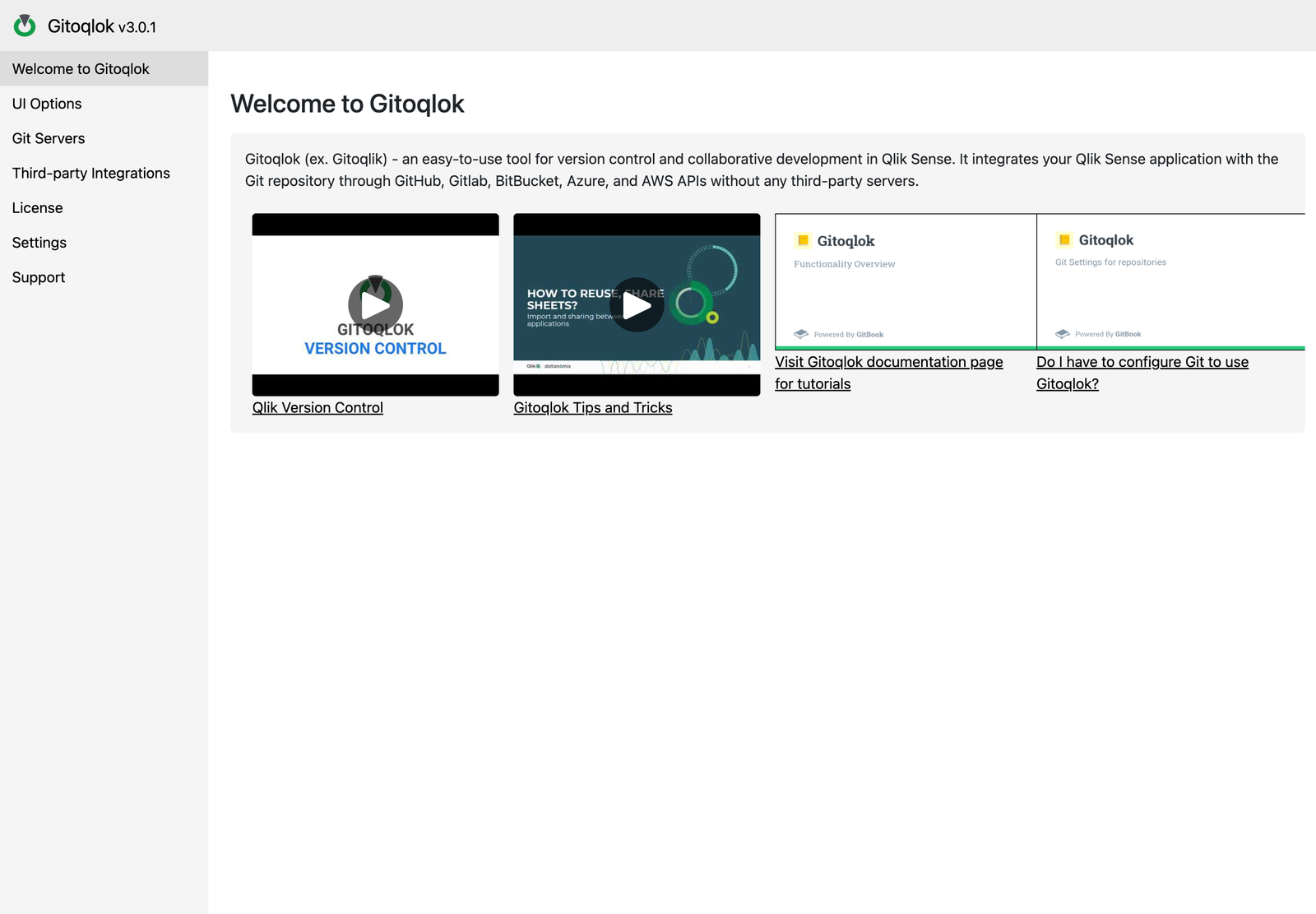 The Welcome tab of the Options page
What to configure
| Step | Needed for | Page |
|---|---|---|
| Add a Git server profile with an access token | Every version-control feature: commit, branches, import, Deploy from Git, Time Machine, Diff Viewer, Sheets Comparator | Git Servers |
| Turn on Qlik Helper | The buttons Gitoqlok adds inside the Qlik interface | Qlik Helper |
| AI provider key | Ask AI buttons and the Documentation Wizard | AI Integration |
| QSDA Pro server | QSDA Pro tab and flags in QSDA Calctime | QSDA Pro Integration |
| License key | Beyond the free tier: more than 30 repositories, unlimited Ask AI requests, QVD links with variables and other Platinum features | License |
Many tools work without Git at all. See Feature Availability for the exact list.
Permissions the extension asks for
Gitoqlok requests access to all sites because Qlik servers and tenants live on arbitrary domains. The extension activates only on pages it recognises as Qlik (hub, app, Data Load Editor, Script, QMC). Other permissions: storage (settings and cache), tabs and side panel (the UI), downloads (exports and log files), scripting (the Qlik Helper controls).
Updating
The browser updates the extension automatically. After an update, reload the open Qlik tabs so that the new version is active in them. The current version is shown in the header of the Options page; the Changelog lists the changes.
Managed installation
Administrators can deploy the extension through Chrome or Edge enterprise policies and control the AI features with a managed policy. See Enterprise Policies (MDM).