
User Interface Overview
Gitoqlok has no window of its own. It appears in four places, depending on which Qlik page is open.
1. The main UI: popup or side panel
On an app page (overview, sheet, Data Load Editor) or a Qlik Cloud Script, clicking the extension icon opens the main Gitoqlok UI. The same UI can be shown in two hosts:
| Host | How it opens | When to use it |
|---|---|---|
| Popup (default) | Click the icon. Closes when you click outside it. | Quick commit, quick check of changes |
| Side panel | Right-click the icon → Open Side Panel, or set Use Side Panel by default | Keeps working while you edit the app; shows a "The application has changed — Refresh" banner when the app is saved in Qlik |
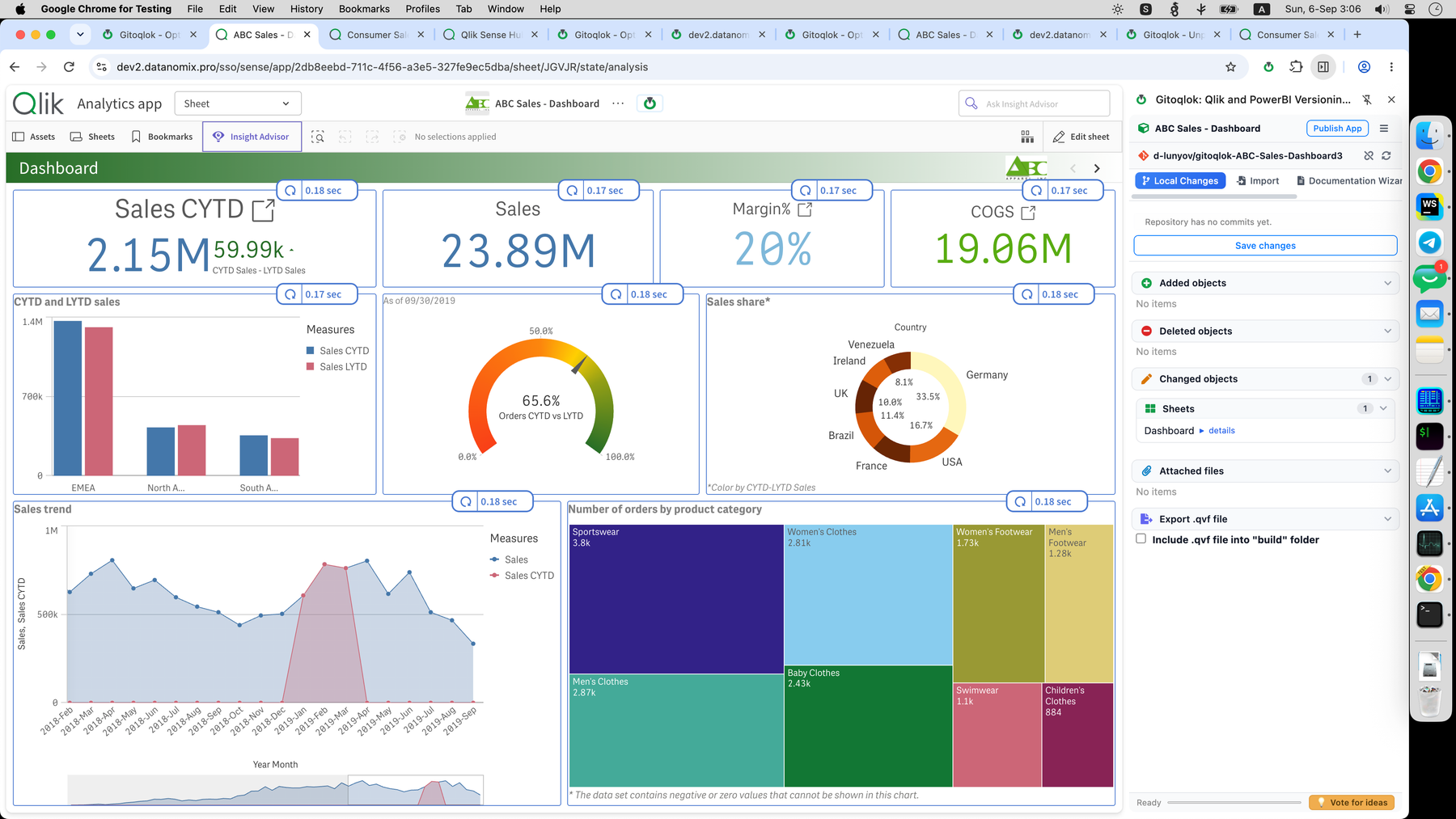 The side panel stays open while you work in the app
Switch the default host on the Options page → UI Options → Open Gitoqlok in, or with the Use Side Panel by default check box in the icon menu.
Header
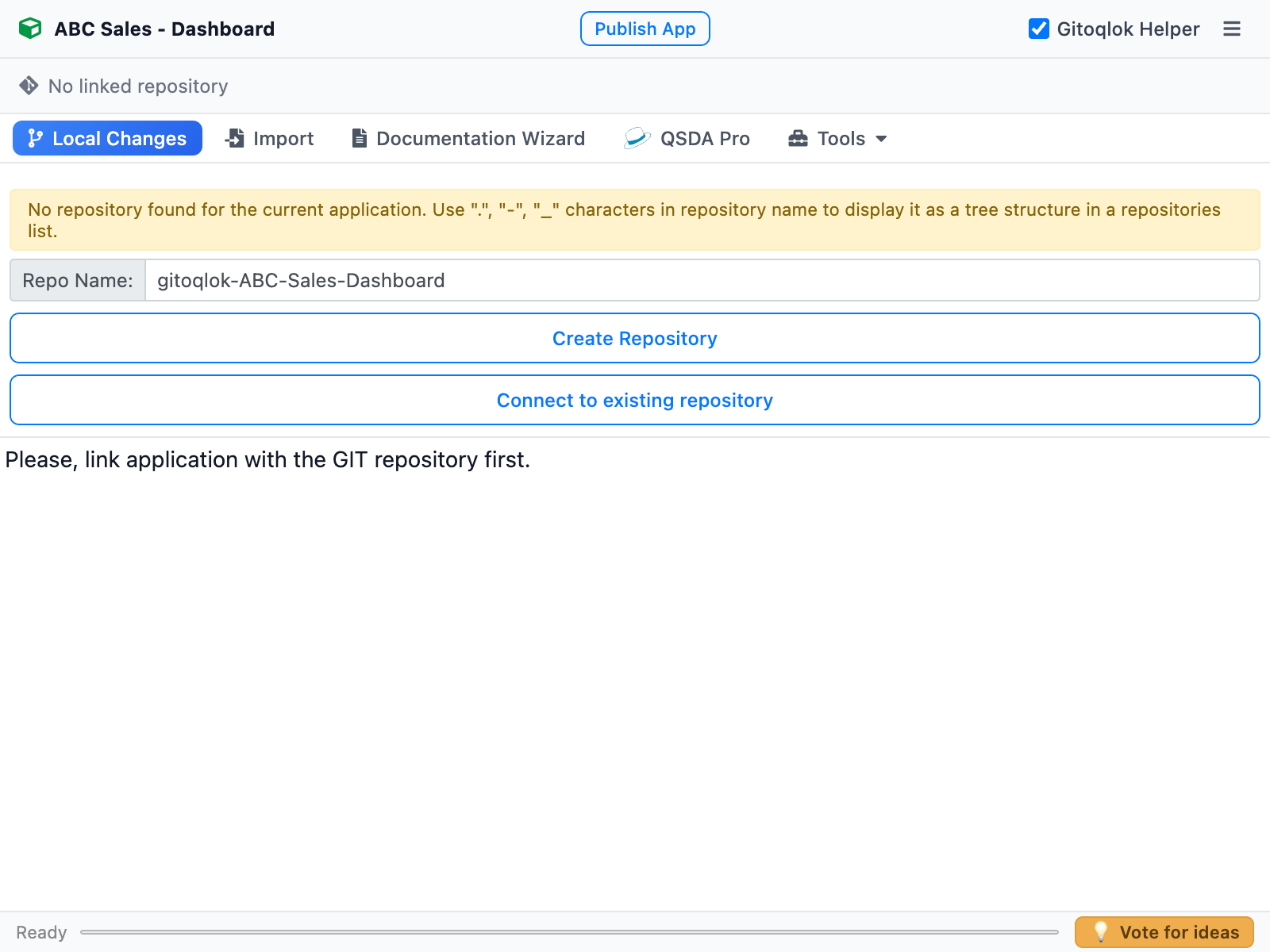
- App name and the Publish App button (or Move App for published apps). See Publish, Move, Duplicate.
- Gitoqlok Helper switch (popup only) — turns the Qlik Helper on or off.
- ☰ menu — Options, Download Logs, Help.
- Repository row — the linked repository with a link to it, Unlink and Refresh icons. It reads No linked repository until the app is connected.
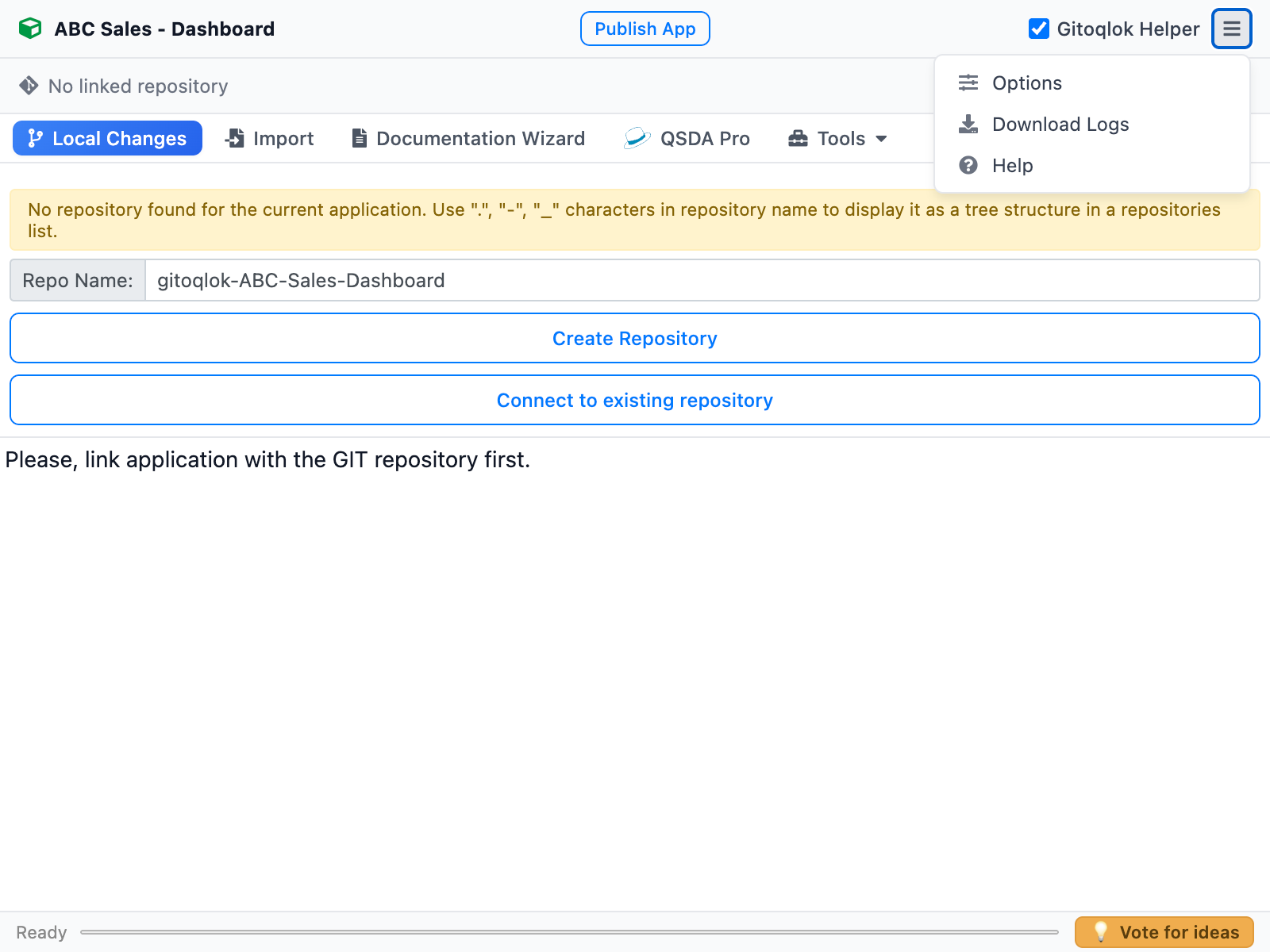
Tabs and the Tools menu
The tab bar shows Local Changes, Import, Documentation Wizard and QSDA Pro. Less frequently used tabs live in the Tools dropdown: Reload Tasks (Enterprise), Glossary (Qlik Cloud), Pre-deployment Checklist and QSDA Calctime. Tabs that do not apply to the current page are hidden automatically.
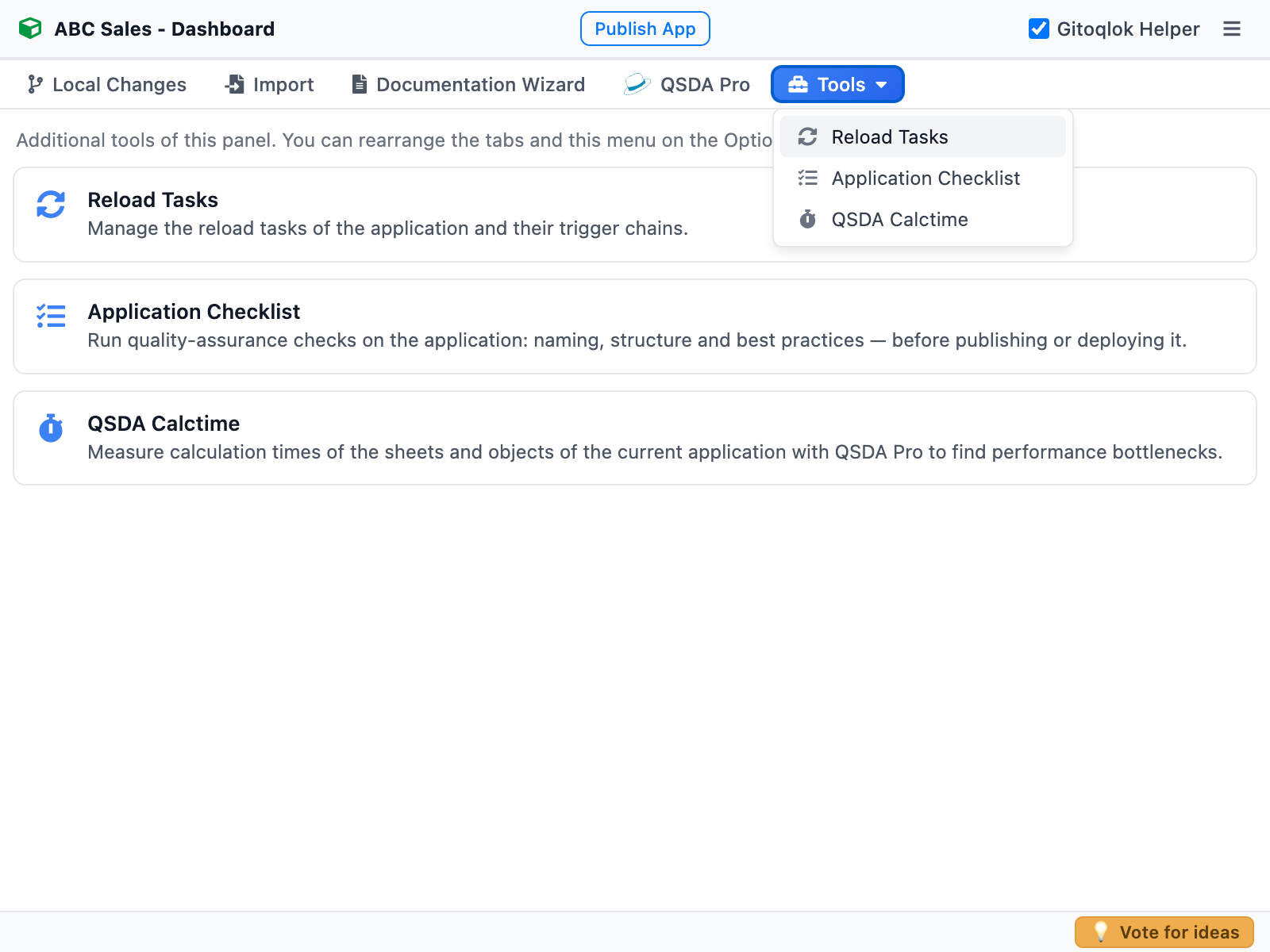
You can reorder the tabs and move them between the bar and the Tools menu on the Options page → UI Options. The layout applies to both the popup and the side panel.
Status bar
The bottom bar shows the current operation and its progress (commit, update, import) and the Vote for ideas button that opens the public feature roadmap.
2. The hub popup
On the Qlik Cloud hub or the Qlik Sense Enterprise hub the icon opens a compact popup with actions that are not tied to one app:
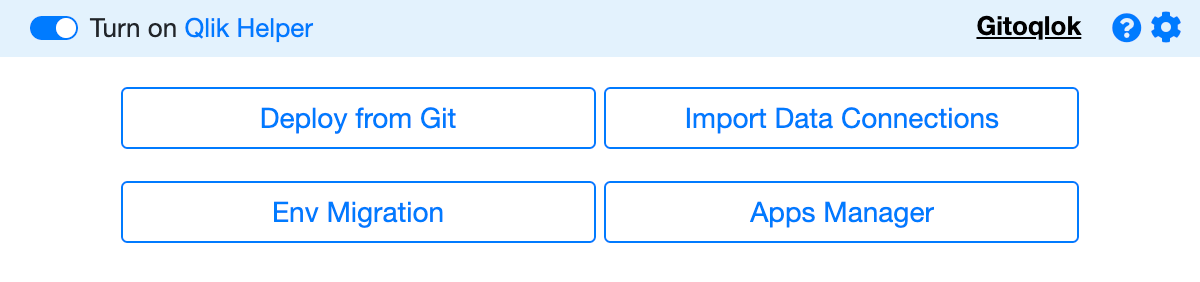
- Deploy from Git — create a new app from a repository. See Deploy from Git.
- Import Data Connections — restore data connections stored in a repository. See Import Data Connections.
- Env Migration (Enterprise) — export and import QMC objects. See Environment Migration.
- Apps Manager — bulk repository creation. See Apps Manager.
- The Qlik Helper switch, Help and Options links.
On the QMC the popup offers the Security Rules Manager.
3. Qlik Helper: buttons inside Qlik
With Qlik Helper turned on, Gitoqlok adds controls to the Qlik pages themselves: a Gitoqlok Helper bar on the app overview, a green helper button on sheets, Toggle Theme and Diff Editor in the Data Load Editor, highlighted master items, Ask AI buttons and more.
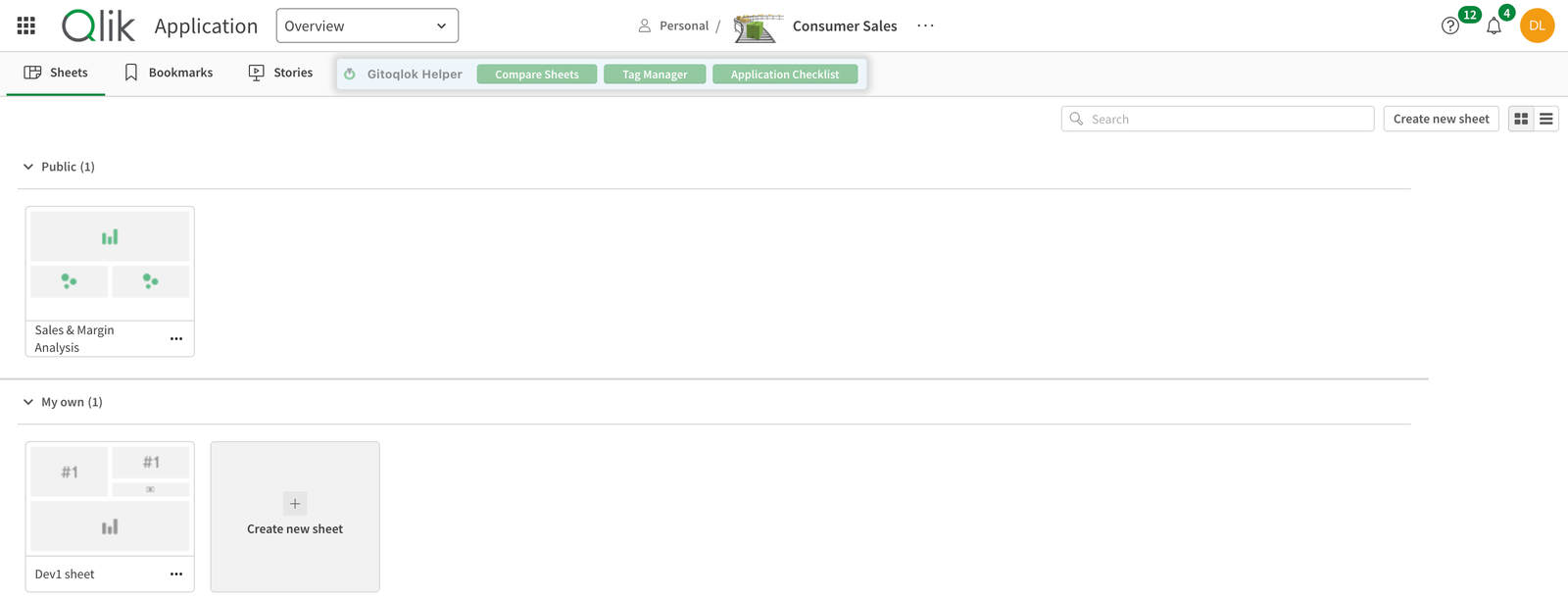
See Qlik Helper for the complete list.
4. The extension icon menu
Right-click the Gitoqlok icon (or click ⋮ next to it in the Extensions menu) to get the context menu:
| Item | What it does |
|---|---|
| Turn on Gitoqlok Helper | Same as the Helper switch |
| Use Side Panel by default | Choose the host for the icon click |
| Open Side Panel / Open Popup | Opens the host that the icon click does not open |
| Tools ▸ Pre-deployment Checklist | Opens the side panel on the checklist |
| Tools ▸ QSDA Calctime | Opens the side panel on QSDA Calctime (app pages only) |
| About ▸ Download Logs | Saves a zip with the extension logs for a support ticket |
| About ▸ Terms of Service / Privacy Policy | Opens the legal pages |
See also Extension Icon Menu.
Separate pages
Some tools open in their own browser tab: the Options page, Environment Migration, Security Rules Manager, the Apps Manager and the Qlik Environment, Wrapped report.