
UI Options
Open the Options page → UI Options.
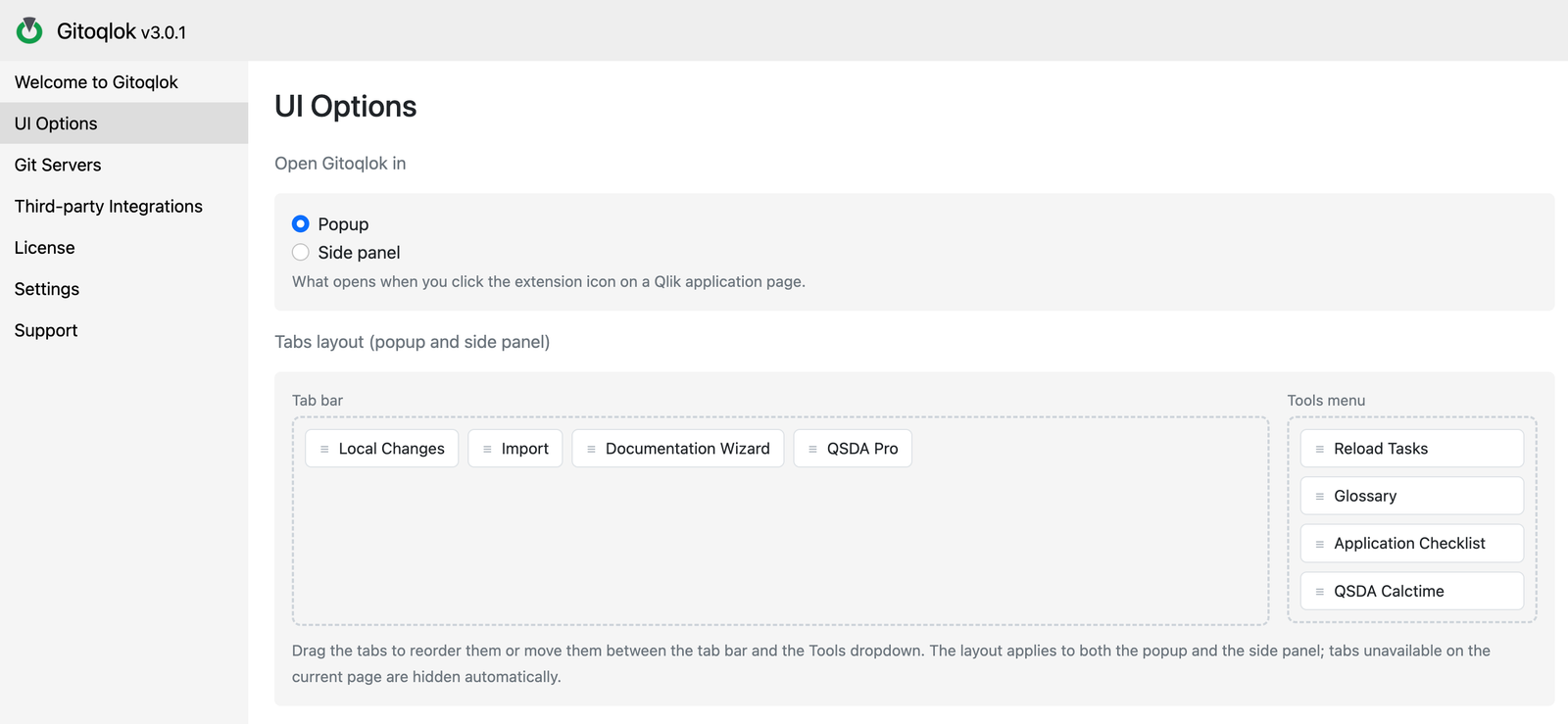
Open Gitoqlok in
What happens when you click the extension icon on a Qlik app page:
- Popup (default) — an 800×600 window that closes when you click elsewhere.
- Side panel — the Chrome side panel next to the page. It stays open while you edit the app and can be resized.
The other host is always one right-click away: the icon menu offers Open Side Panel or Open Popup, and the same setting appears there as Use Side Panel by default.
Tabs layout (popup and side panel)
Drag the tabs to reorder them or move them between the Tab bar and the Tools menu. The layout applies to both hosts. Tabs that are unavailable on the current page (for example, Reload Tasks on Qlik Cloud, or Glossary on Qlik Sense Enterprise) are hidden automatically regardless of the layout.
The default layout is: Local Changes, Import, Documentation Wizard, QSDA Pro in the bar; Reload Tasks, Glossary, Pre-deployment Checklist, QSDA Calctime in the Tools menu.
Changes are saved immediately; reopen the popup or side panel to see them.