
Create a Repository
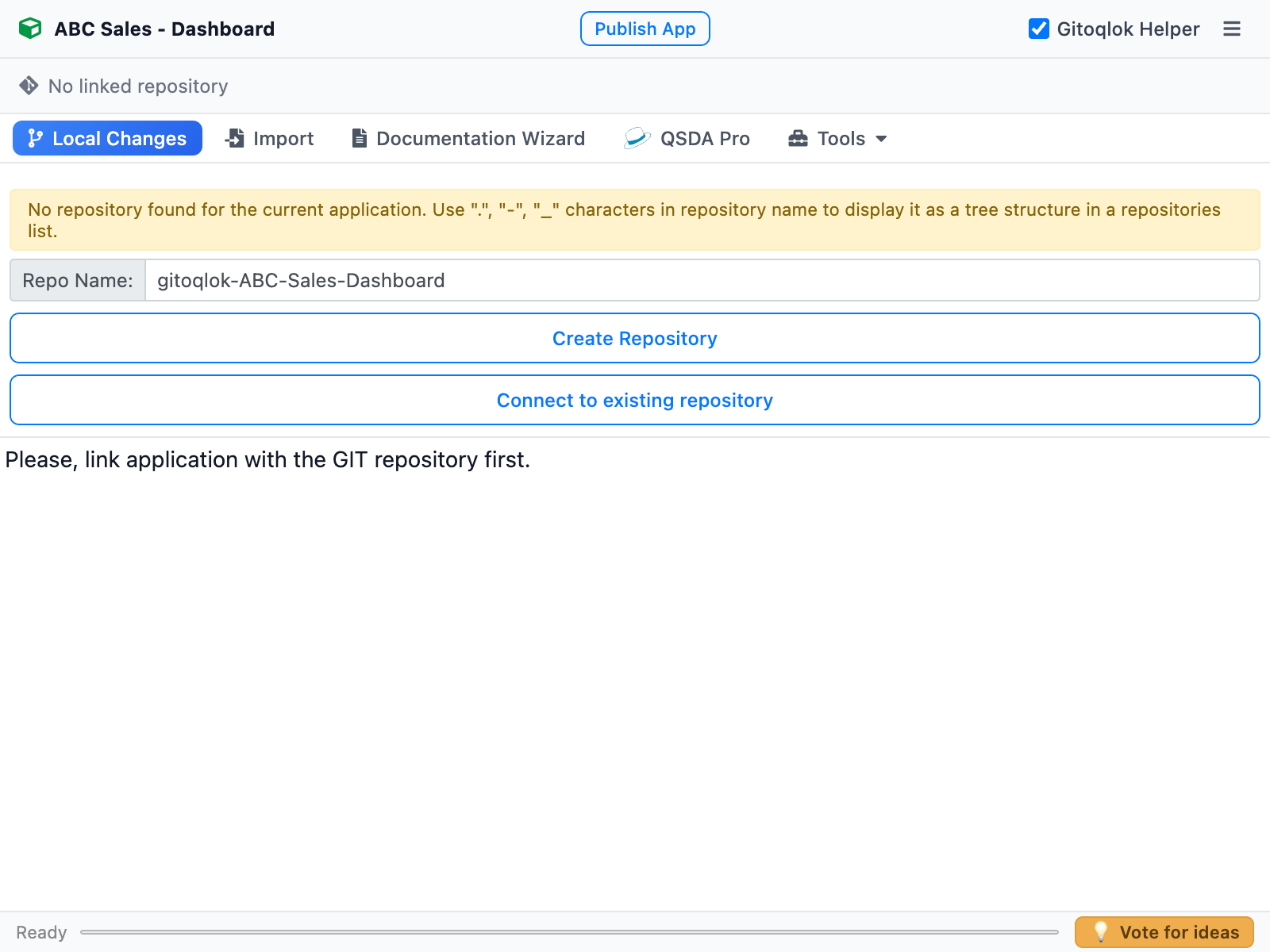
Open the app in Qlik and click the Gitoqlok icon. When the app has no linked repository, the Local Changes tab offers two actions.
Create Repository
Check the name
Repo Name is prefilled from the pattern in Repository Settings (gitoqlok-$qlikAppName by default). Edit it if needed. Use ., - or _ in the name to group repositories into folders in the repository lists (see Repository name delimiter).
Click Create Repository
If your profile has access to organizations (workspaces, groups, projects), Gitoqlok asks where to create the repository. Choose one and click Use Selected Workspace, or click Use Personal Workspace. Tick Do not show choose organization dialog in Repository Settings to skip this dialog in the future.
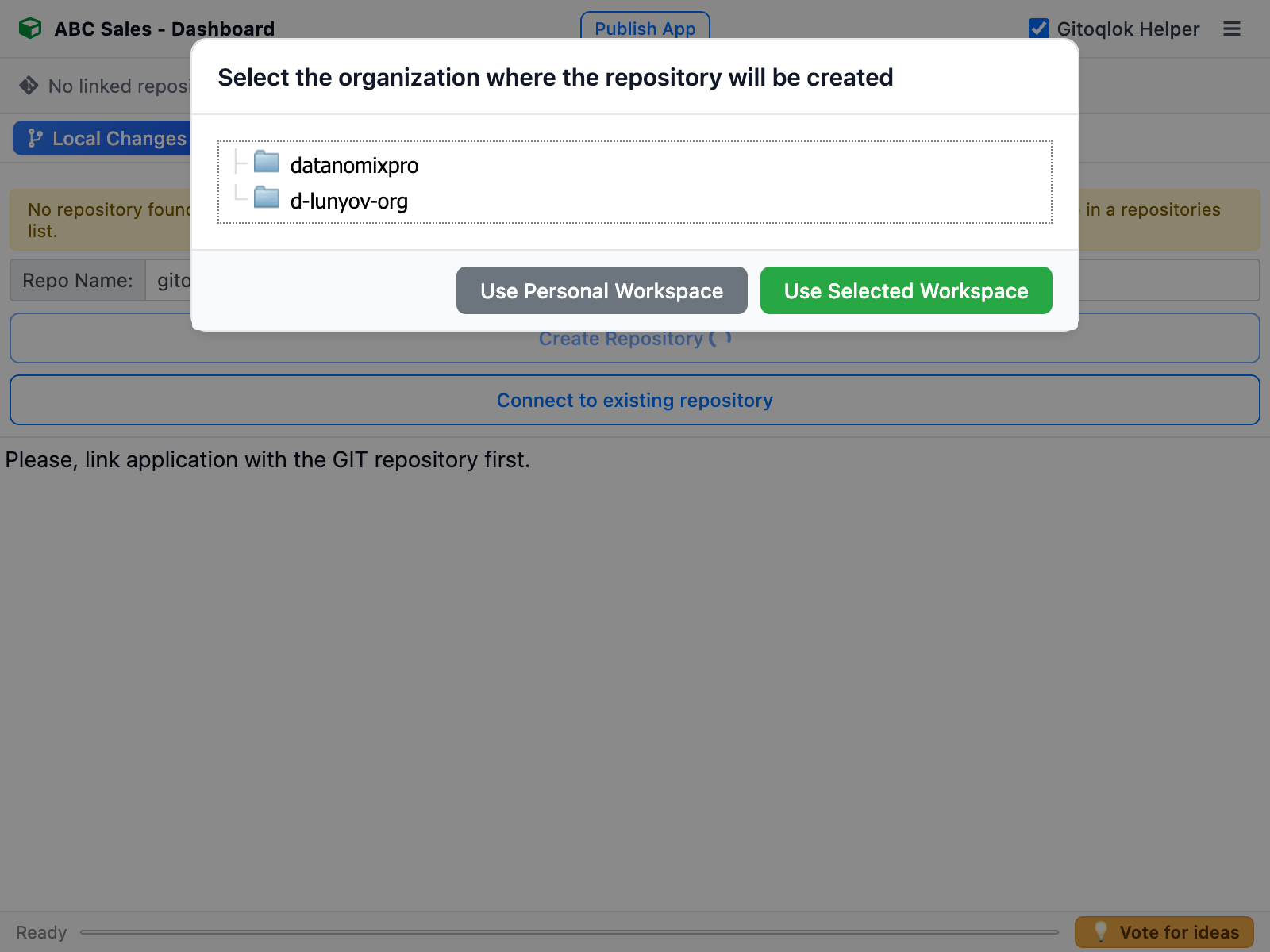
GitLab profiles additionally ask for a subgroup; Bitbucket Cloud asks for the project in the workspace.
Make the first commit
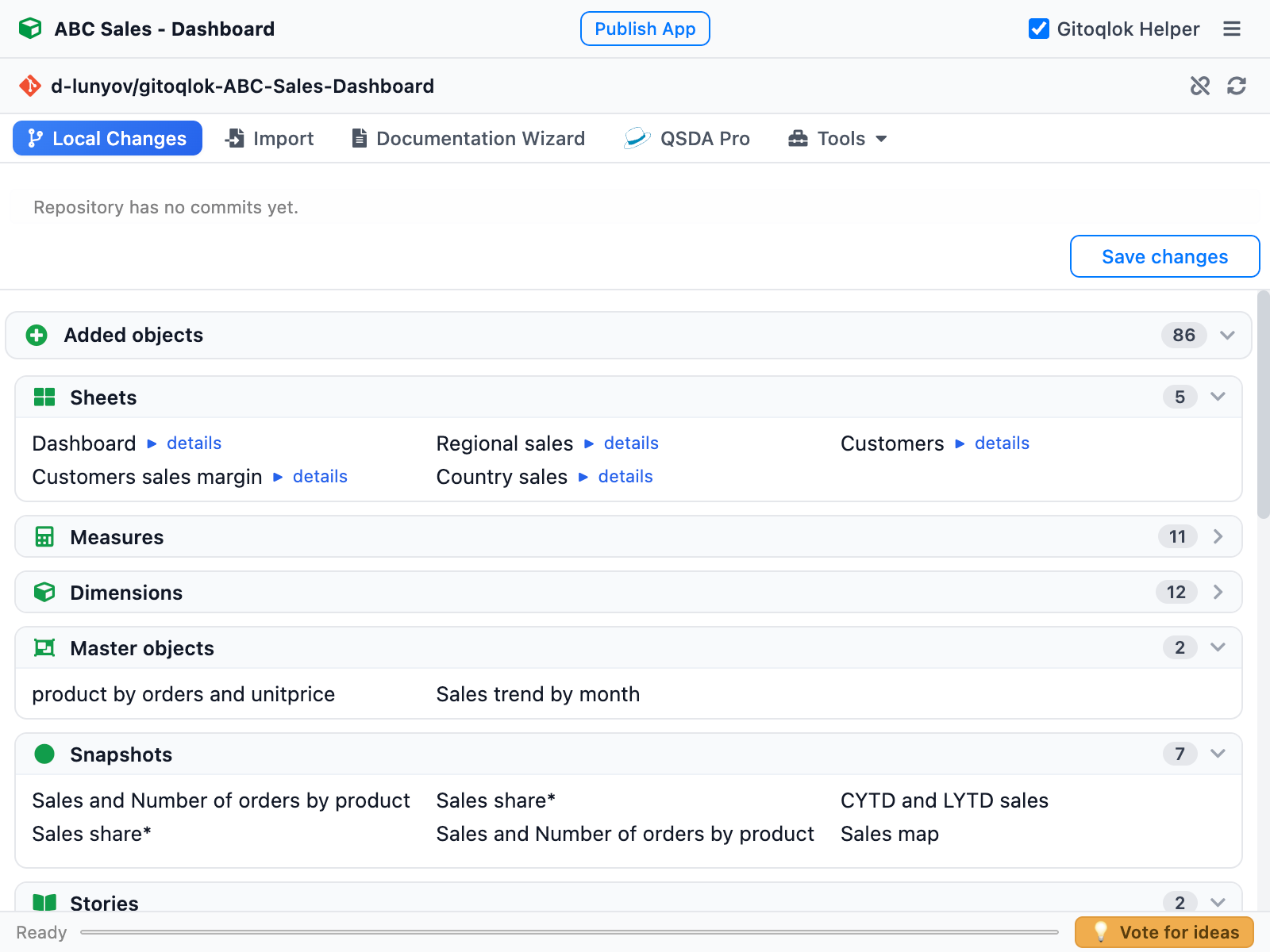
The repository is created with a README.md only. The header now shows the repository name with a link, the Unlink and Refresh icons, and the Local Changes tab lists every object of the app under Added objects. Click Save changes to make the initial commit — see Commit Changes.
Free tier limit
Without a license Gitoqlok creates or connects up to 30 repositories per organization. Above that it opens the license dialog; existing repositories keep working. See License, or request a free 30-day trial.
Connect to existing repository
Use this when the repository already exists: the app was rebuilt, imported from a QVF that lost its metadata, or you want to attach the app as a new branch of another app's repository.
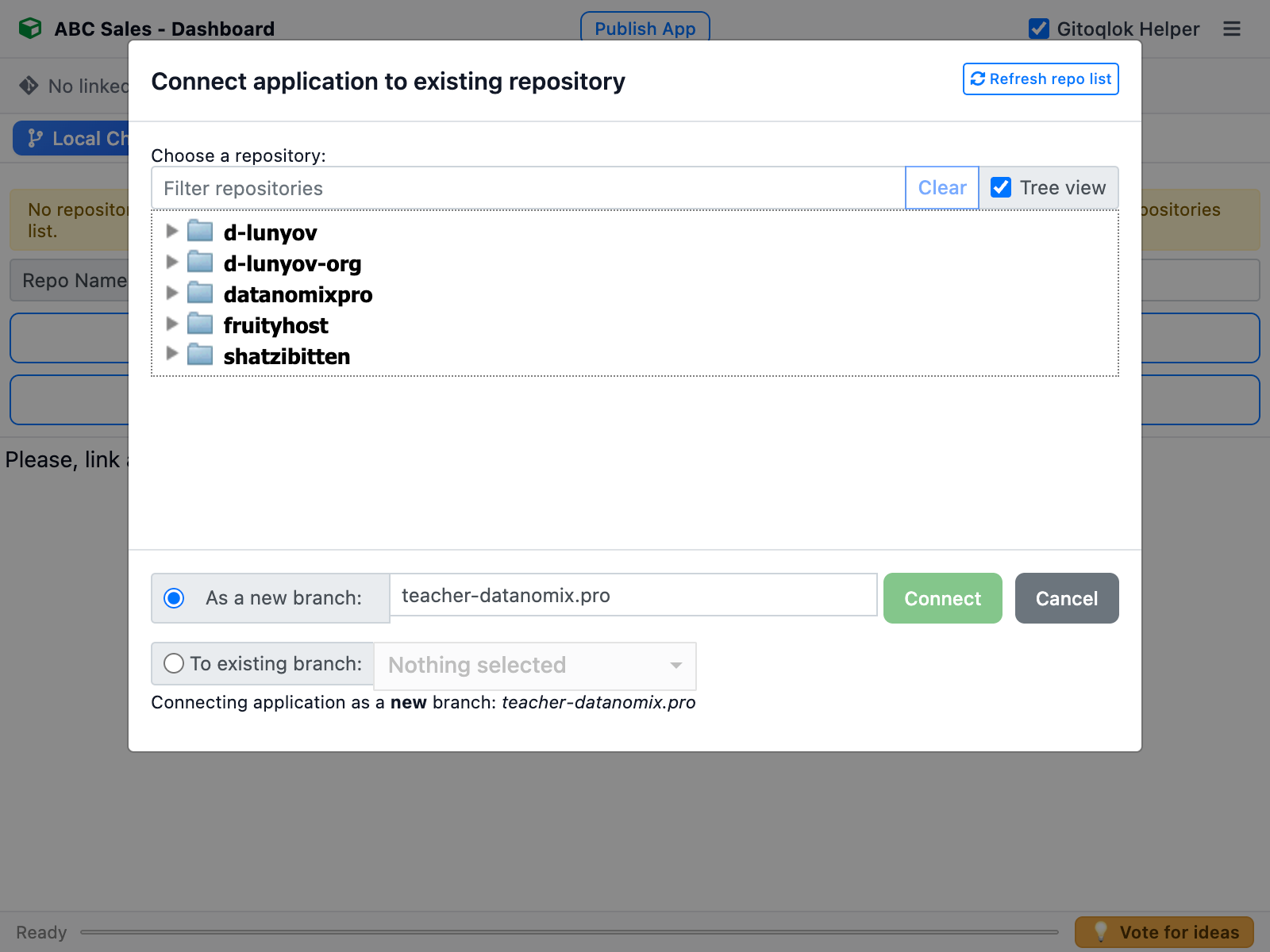
- Pick the repository in the tree (filter by name, or untick Tree view for a flat list; Refresh repo list reloads it from the provider).
- Choose how to connect:
- As a new branch — Gitoqlok creates the branch with the suggested name (pattern from Repository Settings,
$qlikUserNameby default) and commits the current app into it. - To existing branch — pick a branch; the app is linked to it without committing anything. Use Update afterwards to bring the app to the state of the branch, or Save changes to push the app's state into it.
- As a new branch — Gitoqlok creates the branch with the suggested name (pattern from Repository Settings,
- Click Connect.
Copies of an app: Create Branch
When you open a copy of an app whose original already has a repository, Gitoqlok detects the master app and shows We found a repository for the master qlik application, from which current application was duplicated with a Create Branch button instead of Create Repository. See Branches.
Unlink
The Unlink icon in the header removes the metadata from the app. The repository and its history stay on the Git server; the app just forgets about it. You can reconnect later with Connect to existing repository.
Video tutorials
Connect to an existing repository:
GitLab: groups and subgroups: