
Documentation Wizard
The Documentation Wizard turns the charts of selected sheets into a prompt, asks the configured AI provider for a business description and use cases, lets you edit the result and saves it as a Markdown file in the app's repository.
Select the sheets
Open the Documentation Wizard tab in the popup or side panel and tick the sheets to document (all are selected by default).
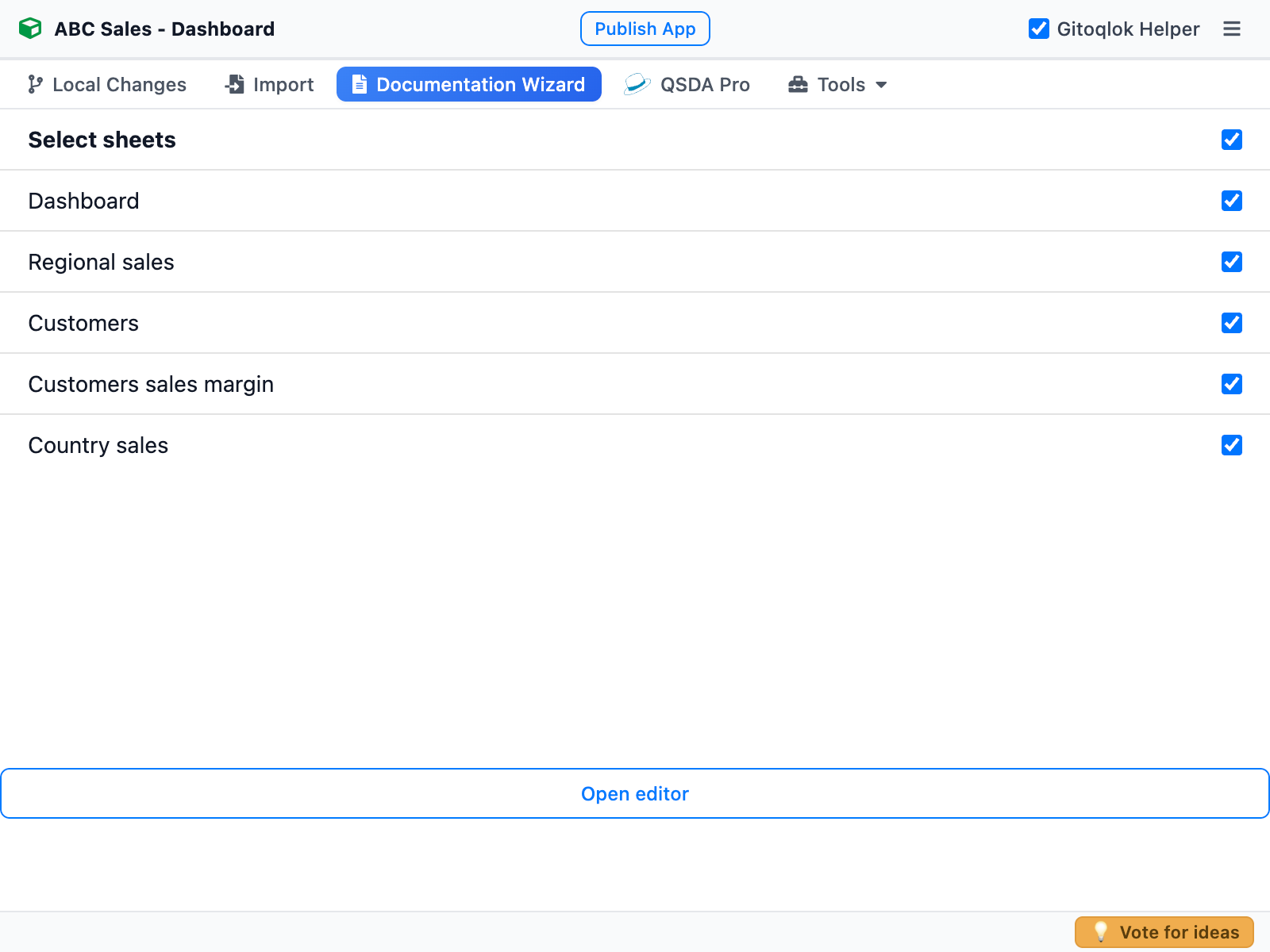
Open the editor
Click Open editor. The editor opens as a dialog inside the Qlik page.
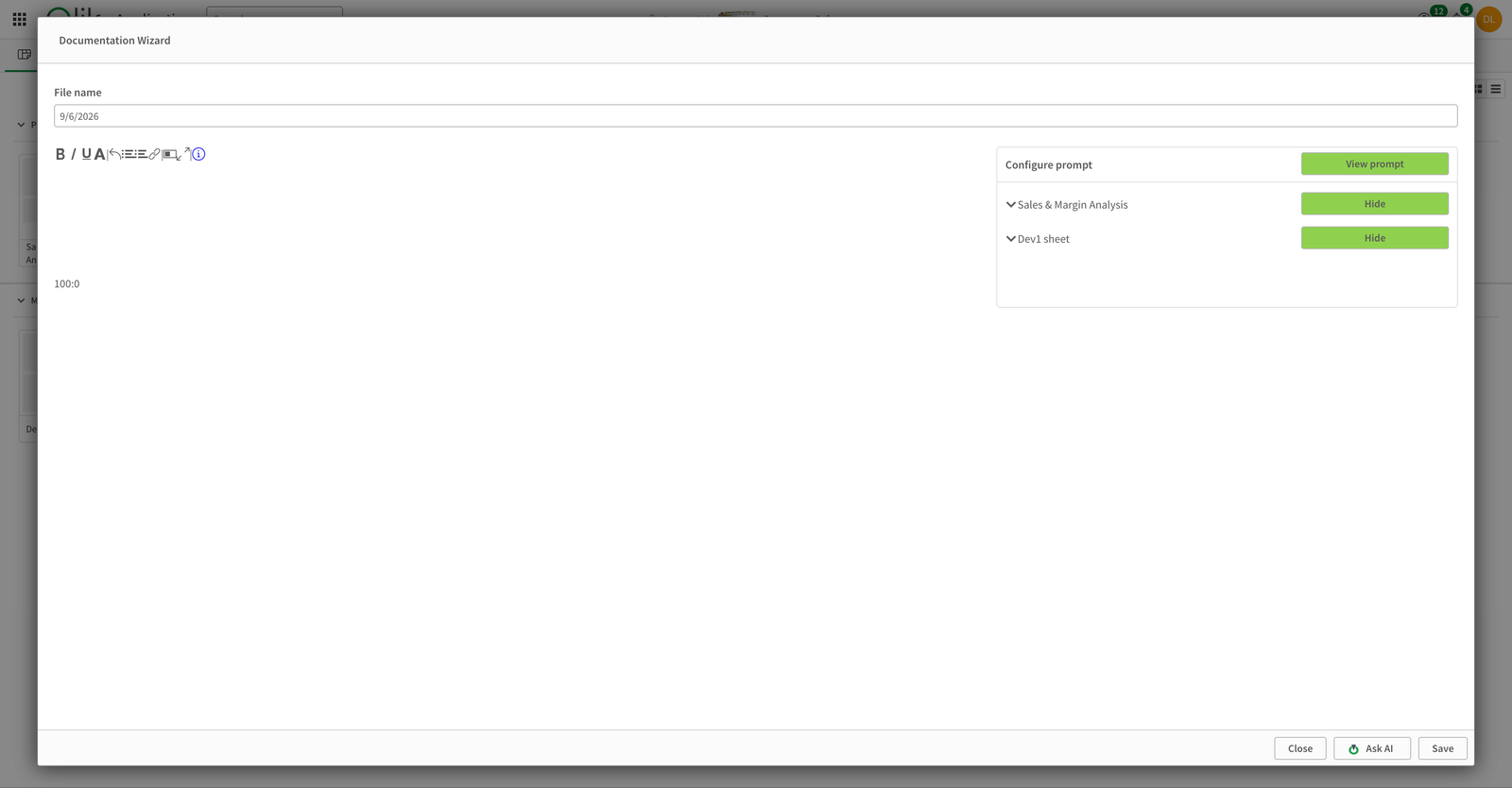
- File name — the name of the Markdown file that will be saved to the repository. A name with
/creates folders. - The left pane is a rich-text editor for the generated documentation.
- Configure prompt on the right lists the selected sheets. Hide excludes a sheet from the prompt; expand a sheet to exclude individual charts.
Review the prompt
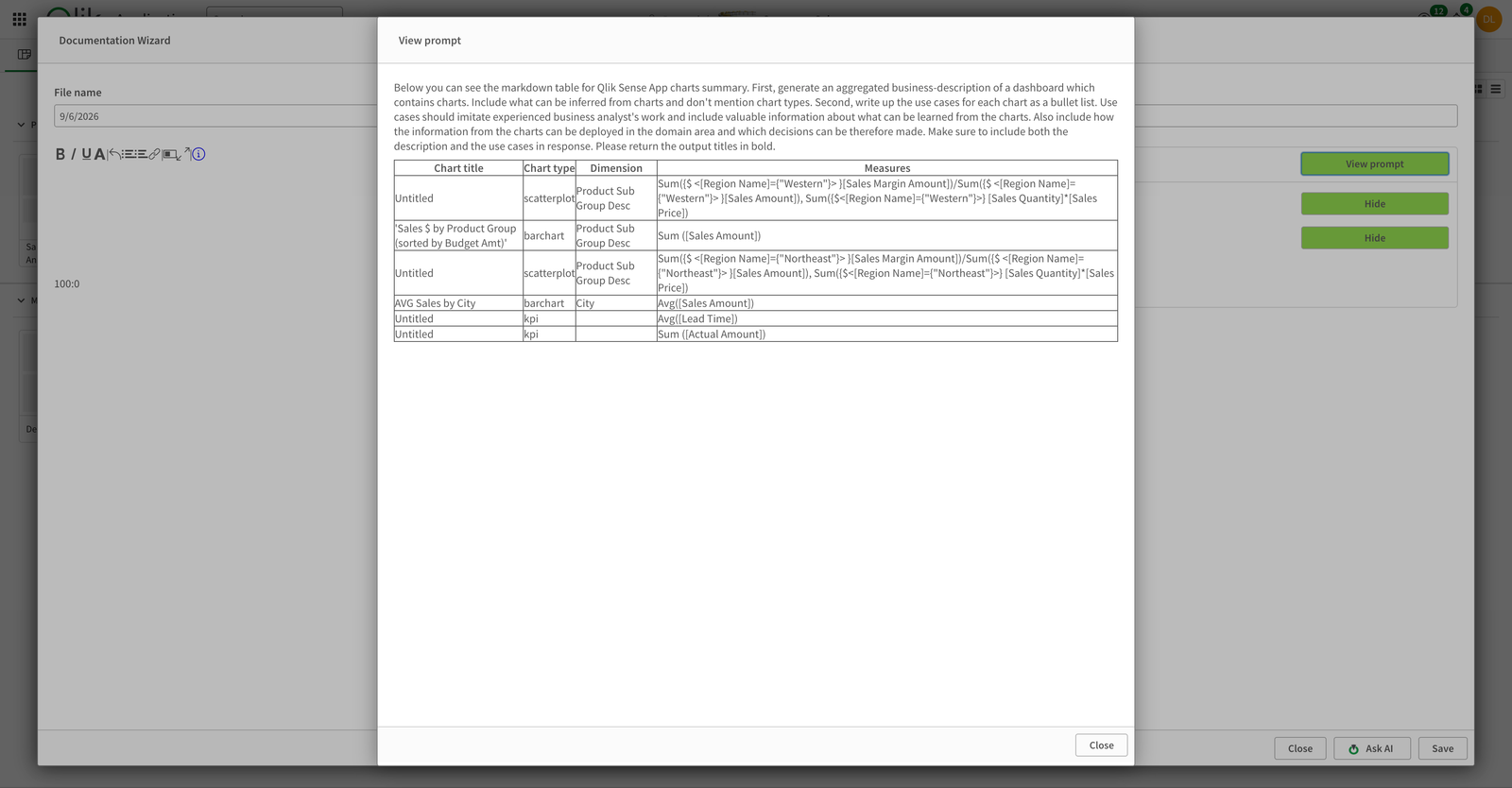
View prompt shows exactly what will be sent: the instruction from Prompt Options plus a table with chart title, type, dimensions and measures for every included chart.
Ask AI and edit
Click Ask AI. The response (a summary of each dashboard and use cases per chart) appears in the editor. Edit it as needed.
Save
Save commits the file to the linked repository. View File opens it on the Git provider.
Notes
- The prompt template is editable on the Options page → Third-party Integrations → Documentation Wizard prompt.
- Ask AI requests count against the free quota; see AI Integration.
- The generated file lives in the repository, so it is versioned together with the app and can be published with any documentation tool that reads Markdown.