
Quick Start
This walkthrough takes a Qlik app from "no version control" to a repository with a commit and shows how to restore a previous state. It uses GitHub; other providers differ only in how the token is created.
Create a GitHub token
Open github.com/settings/tokens, click Generate new token (classic) and grant the repo scope. Copy the token.
Add a Git server profile
Open the Gitoqlok Options page → Git Servers → + Add a new server. Leave GitHub selected, paste the token into User personal token and click Check connection. When the check succeeds, click Create server.
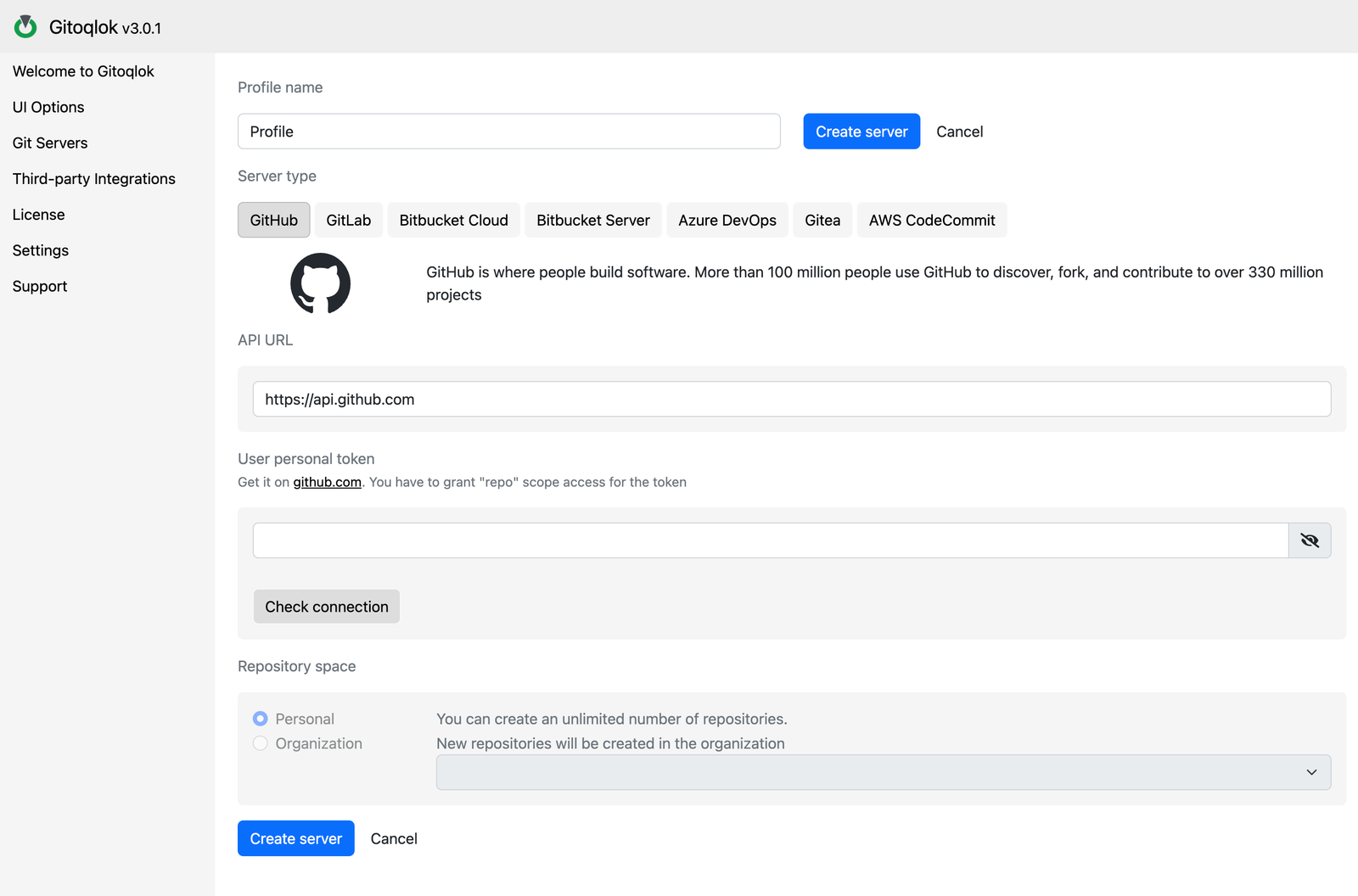
Gitoqlok offers to open the Apps Manager for bulk repository creation. You can skip it for now.
Open a Qlik app and click the Gitoqlok icon
Open any app you own in Qlik Cloud or Qlik Sense Enterprise. Click the Gitoqlok icon in the toolbar. The popup opens on the Local Changes tab and, since the app has no repository yet, suggests a repository name.
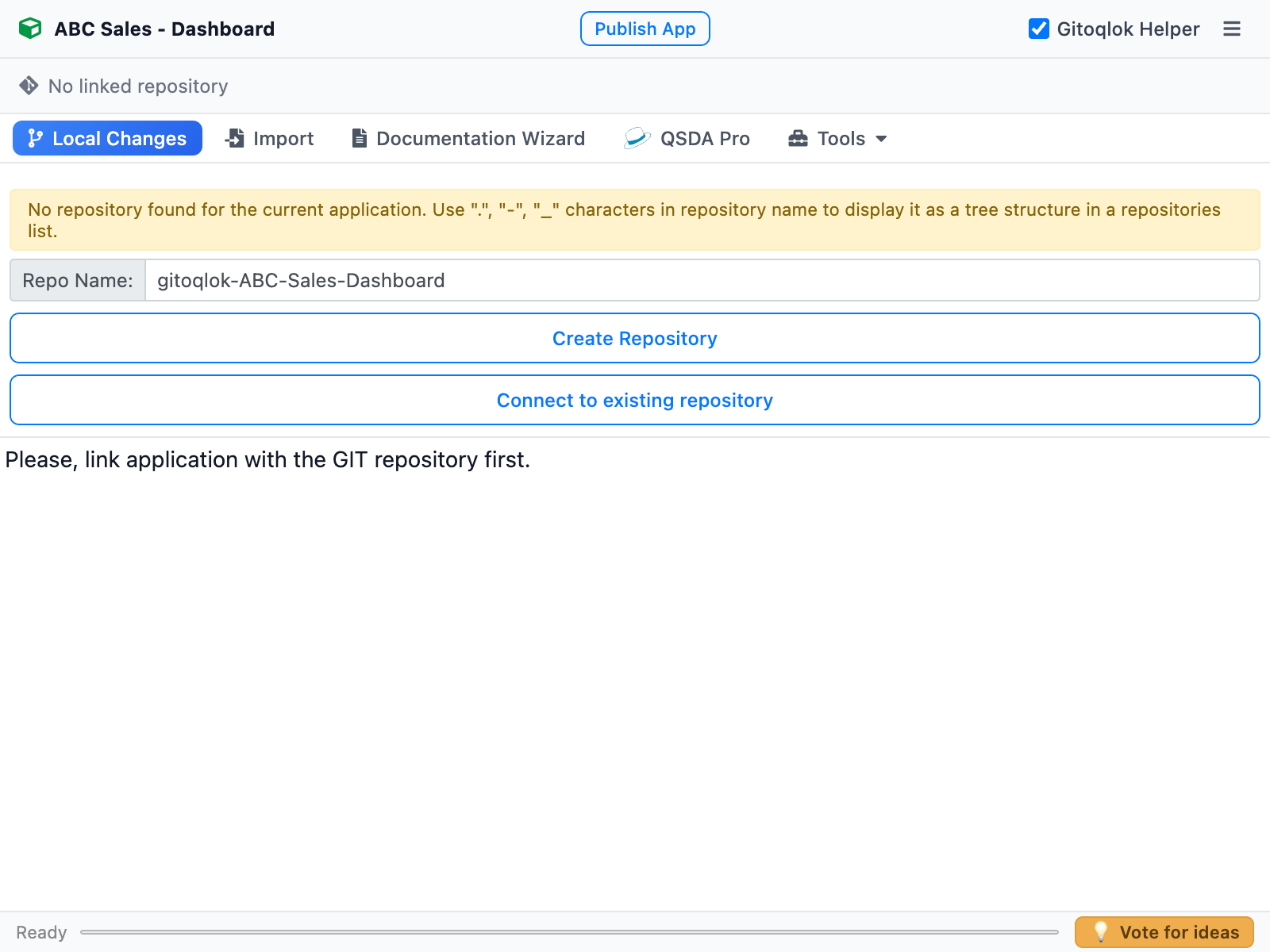
Create the repository
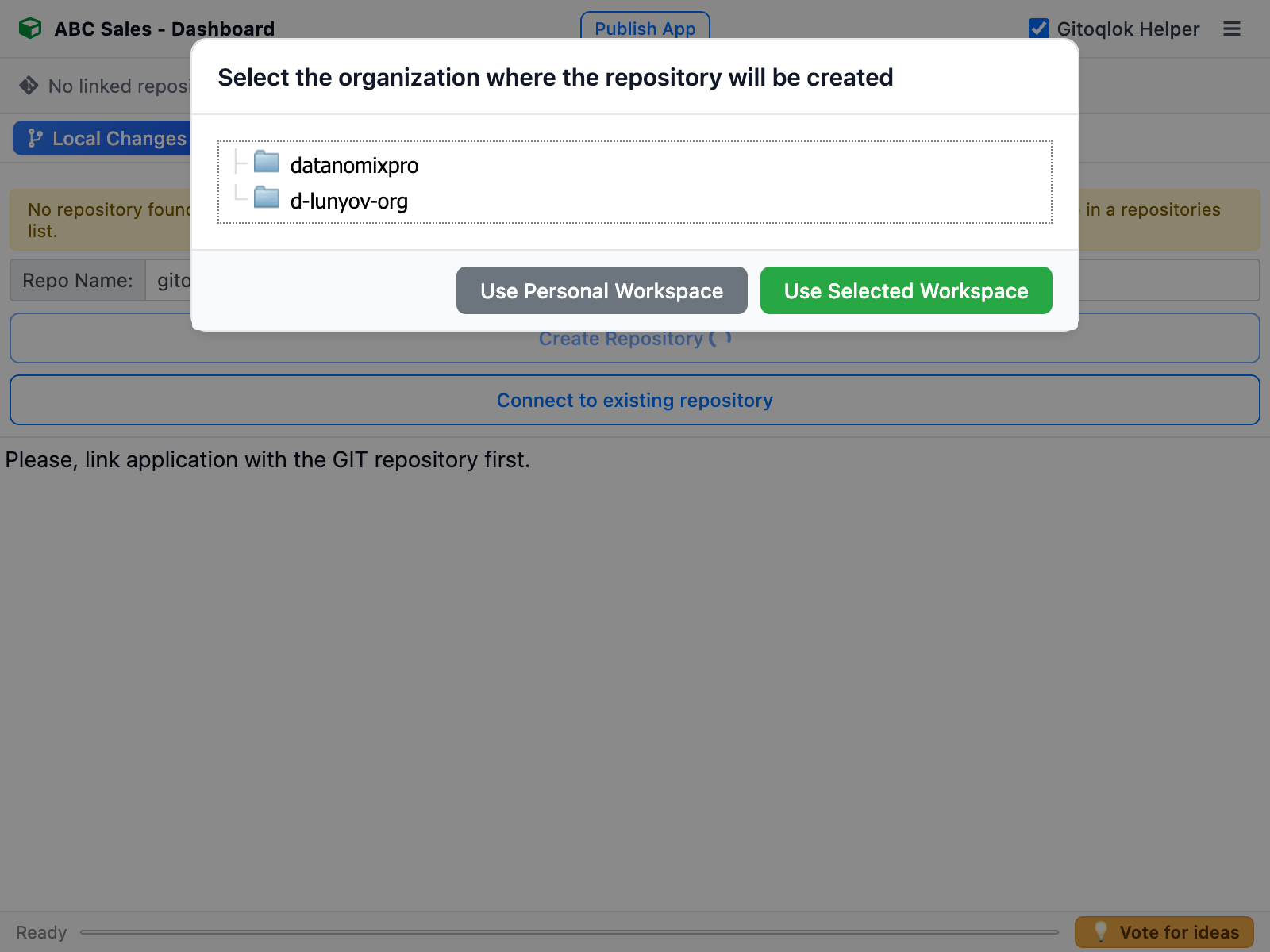
Click Create Repository. If your token has access to organizations, Gitoqlok asks where to create the repository: pick an organization or click Use Personal Workspace.
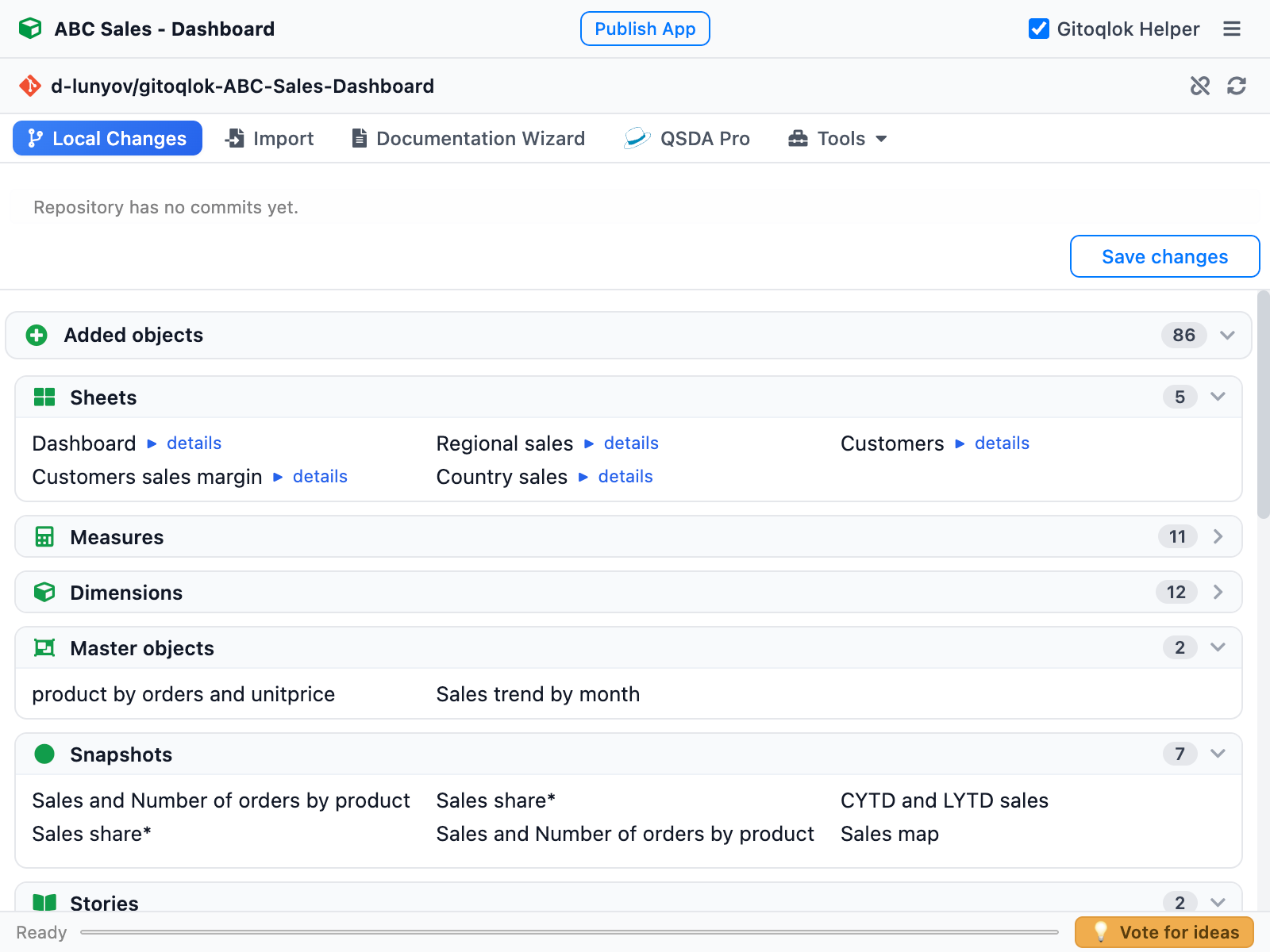
After a few seconds the header shows the linked repository and the Local Changes tab lists everything in the app as Added objects.
Make the first commit
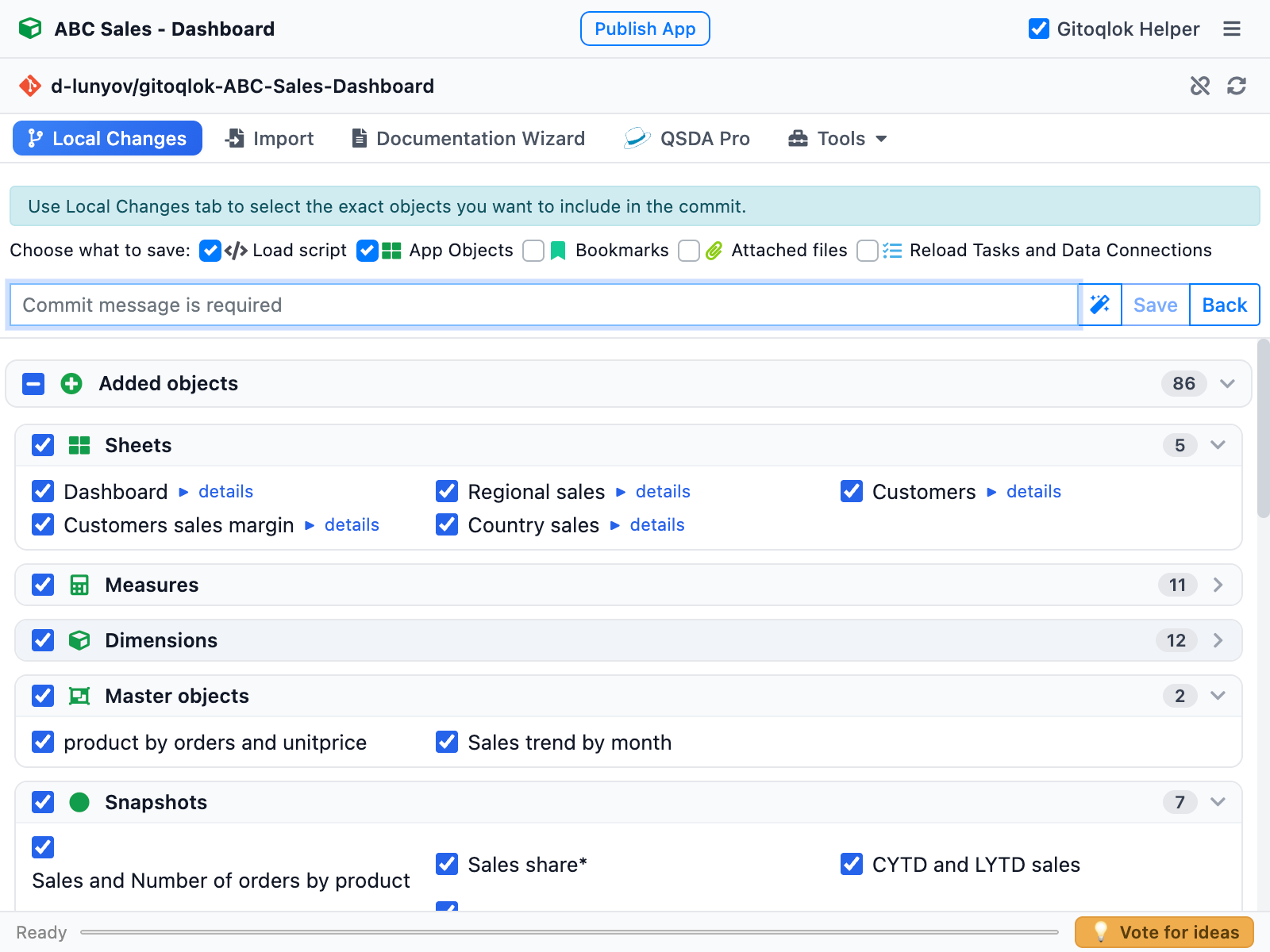
Click Save changes. Choose what to include (load script, app objects, bookmarks, attached files, reload tasks or data connections), type a commit message and click Save.
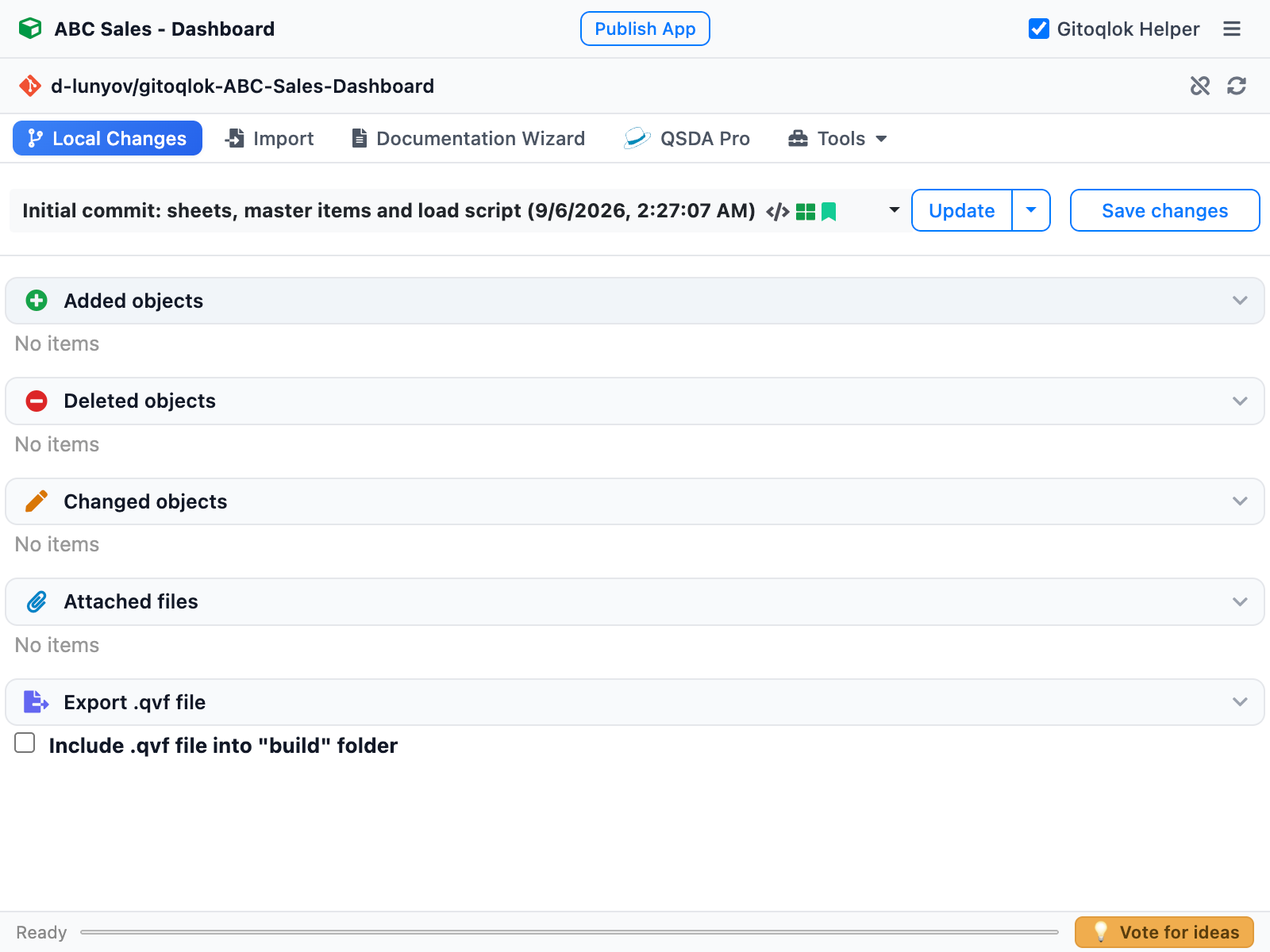
The commit appears in the commit selector, and the change sections become empty: the app now matches the repository.
Change something and commit again
Edit a sheet, a measure or the load script in Qlik and save. Reopen the popup: the change shows up under Changed objects with a details link that lists exactly what differs. Commit it the same way. Repeat as often as you like; every commit is a restore point.
Roll back
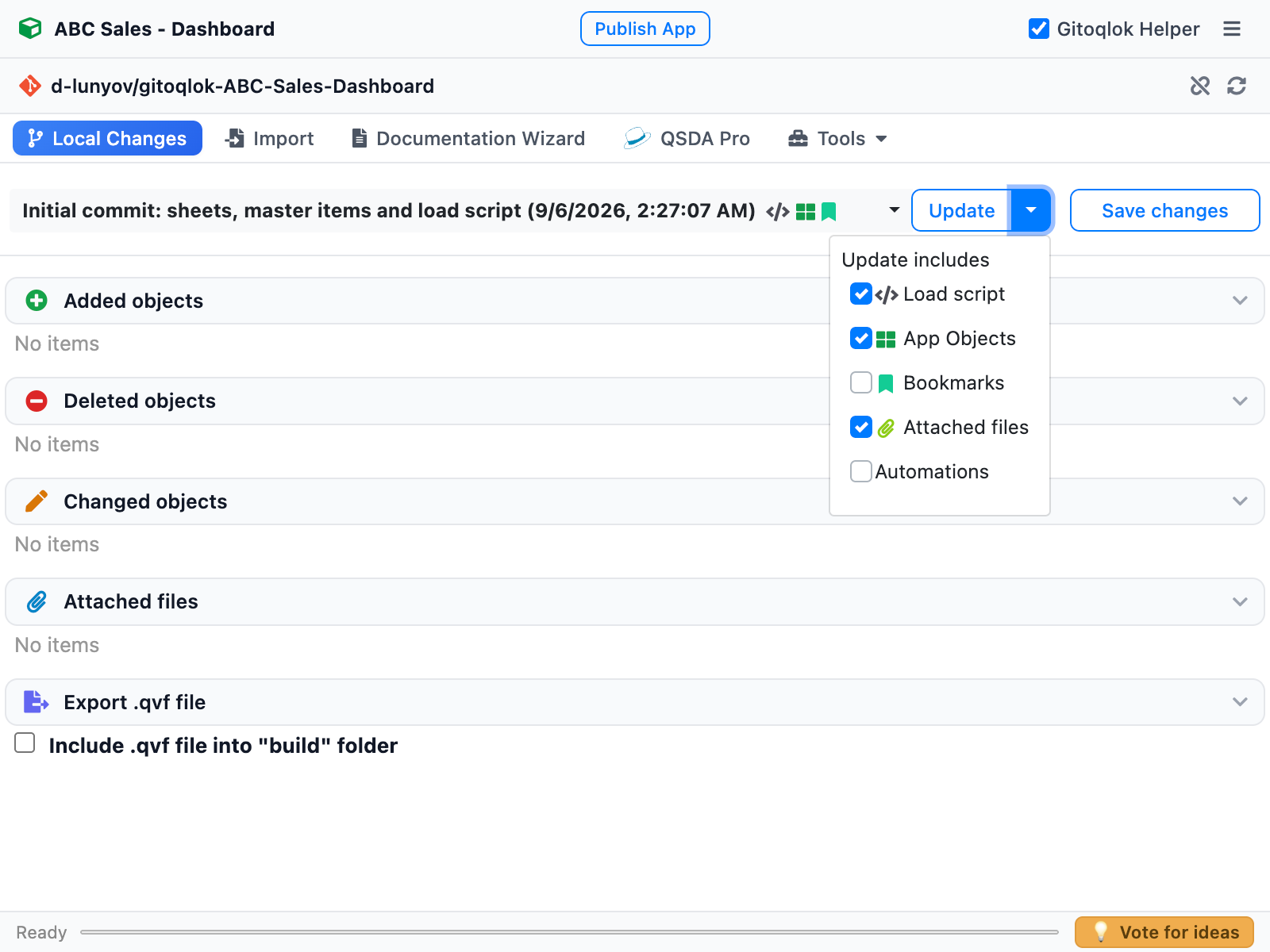
Pick an older commit in the commit selector and click Update. Gitoqlok applies that version to the app. The arrow next to Update lets you choose which parts to restore (script, objects, bookmarks, attached files, automations).
Where to go next
- Commit Changes — everything the commit form can do
- Branches — work on a copy of the app in its own branch
- Qlik Helper — Time Machine and Diff Viewer show versions visually inside Qlik
- Team Workflow — how several developers collaborate on one app