
GitLab
Qlik Cloudsupported Qlik Sense Enterprisesupported Git serverrequired
Create a personal access token
Open gitlab.com/-/user_settings/personal_access_tokens (or User settings → Access tokens on your own instance) → Add new token. Select the api scope and copy the token.
Add the server profile
Options page → Git Servers → + Add a new server → GitLab.
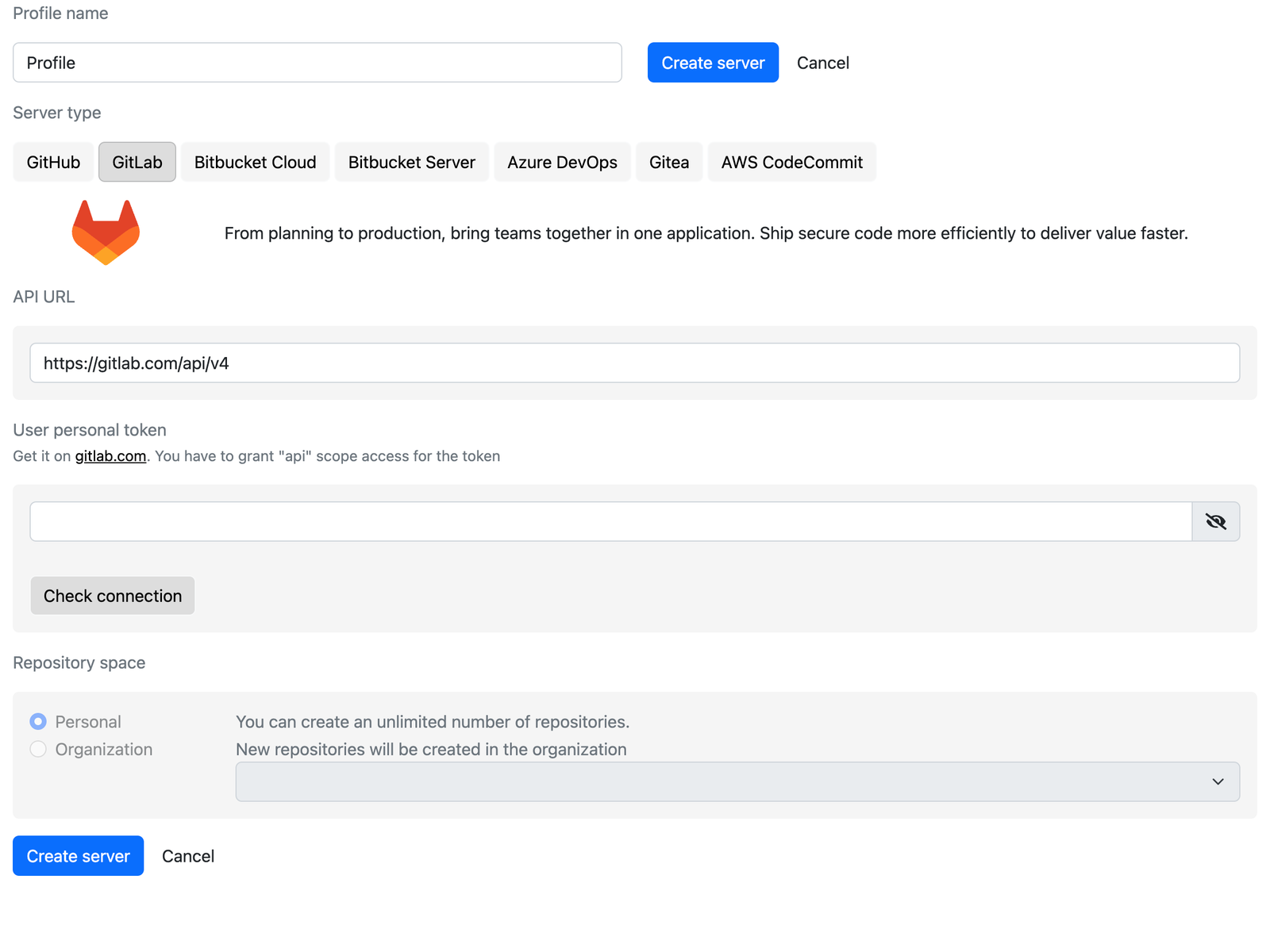
- API URL:
https://gitlab.com/api/v4for gitlab.com. For a self-managed instance usehttps://<your-host>/api/v4. - User personal token: paste the token and click Check connection.
Choose the repository space
Personal creates projects in your namespace. Organization lets you pick a group; when you create a repository from an app, Gitoqlok additionally asks for a subgroup of that group, so repositories can be organized the way your GitLab is.
Create the server
Click Create server.
Notes
- GitLab projects created by Gitoqlok get the visibility chosen in Repository Settings.
- By default, only Maintainers may push to the default branch of a GitLab project. If repositories are created but commits fail, check Settings → Repository → Protected branches of the project and allow Developers to push, or give the users the Maintainer role. See Troubleshooting.
- gitlab.com limits authenticated API traffic to 2,000 requests per minute per user; self-managed instances have their own limits. Gitoqlok fetches repository archives to stay far below them.