
Commit Changes
The Local Changes tab
After an app is linked, Local Changes compares the app with the commit selected in the commit selector and groups the differences:
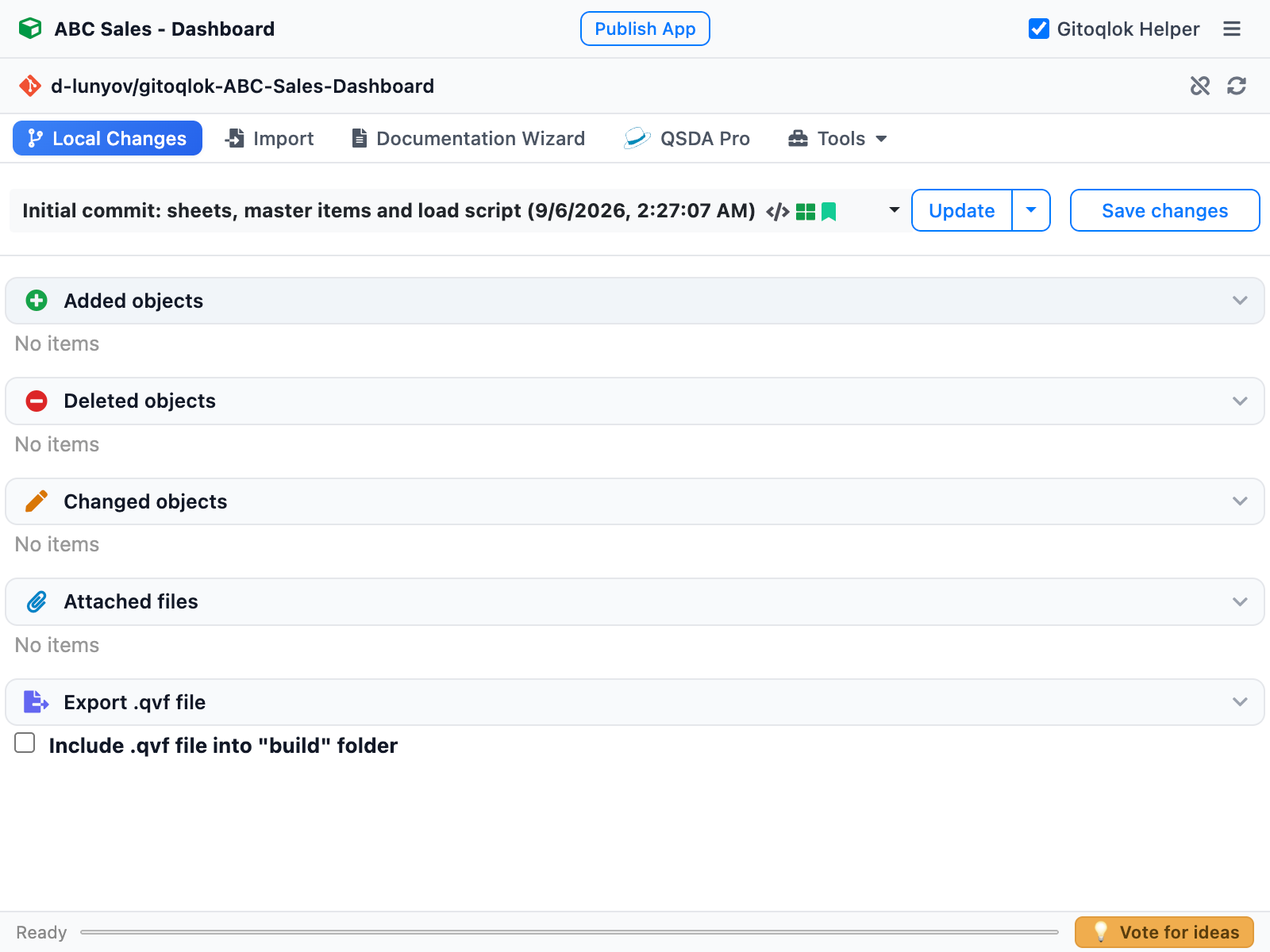
| Section | Content |
|---|---|
| Added objects | Objects that exist in the app but not in the commit: sheets, measures, dimensions, master objects, variables, bookmarks, stories, snapshots, script sections |
| Deleted objects | Objects in the commit that are gone from the app |
| Changed objects | Objects whose JSON differs. Each item has a details link that lists what changed (for a sheet: which charts, measures or dimensions) |
| Attached files | Files uploaded to the app (app content) that differ from the repository |
| Export .qvf file | Include .qvf file into "build" folder adds a binary export of the app to this commit |
Object types are shown with icons; counters on the section headers show how many items each section contains. The side panel shows the same tab and refreshes with the Refresh banner when the app is saved in Qlik.
Making a commit
Click Save changes
The commit form opens above the change list.
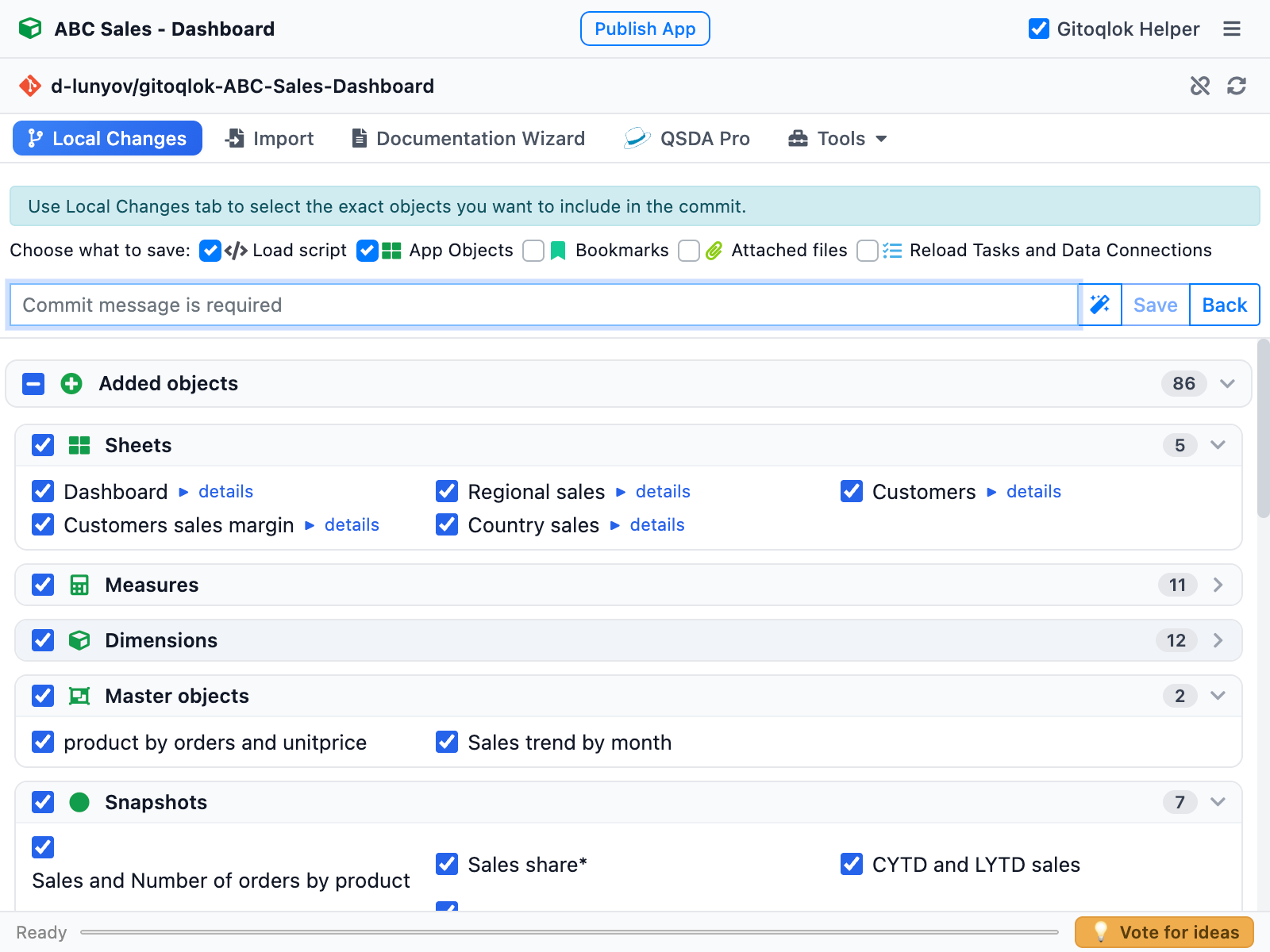
Choose what to save
| Check box | Includes |
|---|---|
| Load script | Every script section as a .qvs file, the section order and the joined loadScript.qvs |
| App Objects | Sheets, master items, variables, stories, snapshots, app properties, fields and thumbnails |
| Bookmarks | Bookmarks of the app |
| Attached files | App content files; filter and select them in the Attached files section |
| Reload Tasks and Data Connections (Qlik Sense Enterprise) | The reload tasks of the app and the data connections it uses, chosen in a dialog before the commit |
| Data Connections and Automations (Qlik Cloud) | Data connections and Qlik Application Automations, chosen in dialogs before the commit |
On a Qlik Cloud Script page only Load script, Attached files and Data Connections and Automations are available.
Select objects (partial commit)
Every item in the change list has a check box. Untick the objects you do not want in this commit — for example, commit only the finished sheet and leave the experimental one uncommitted. The section check boxes select or deselect a whole section.
Write the message
Type a commit message (required). The magic wand button next to the field generates a message from the list of changes (Auto-generate commit message).
Click Save
The status bar shows the progress. Large commits are split into parts automatically when they exceed the size limit set in Repository Settings; above 150 MB (configurable) Gitoqlok offers to commit minified JSON. Back returns to the change list without committing.
Data connections and automations
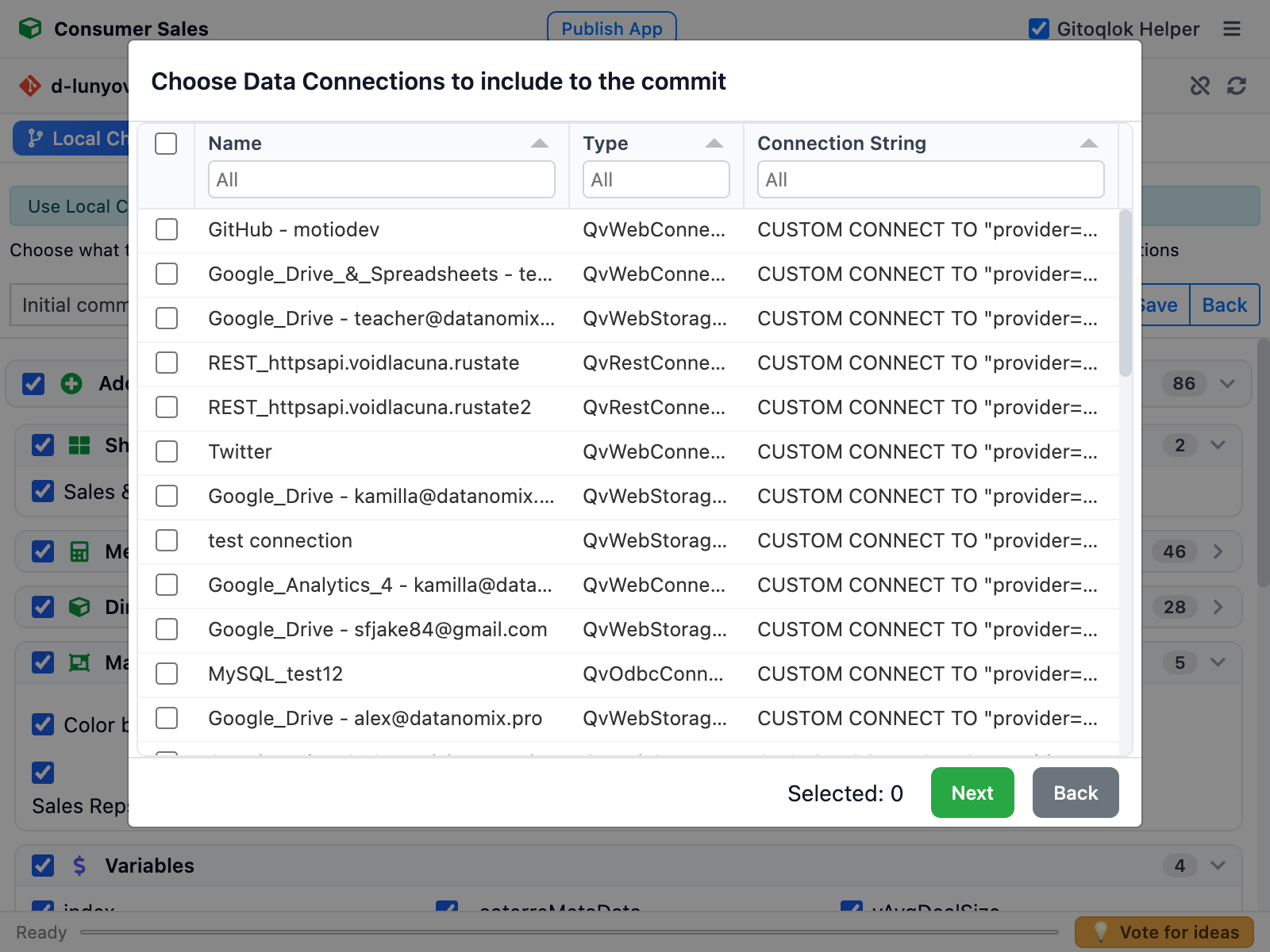
Data connections may contain credentials, so they are never committed silently. When the option is ticked, a dialog lists the connections of the server or tenant; select the ones to include and click Next.
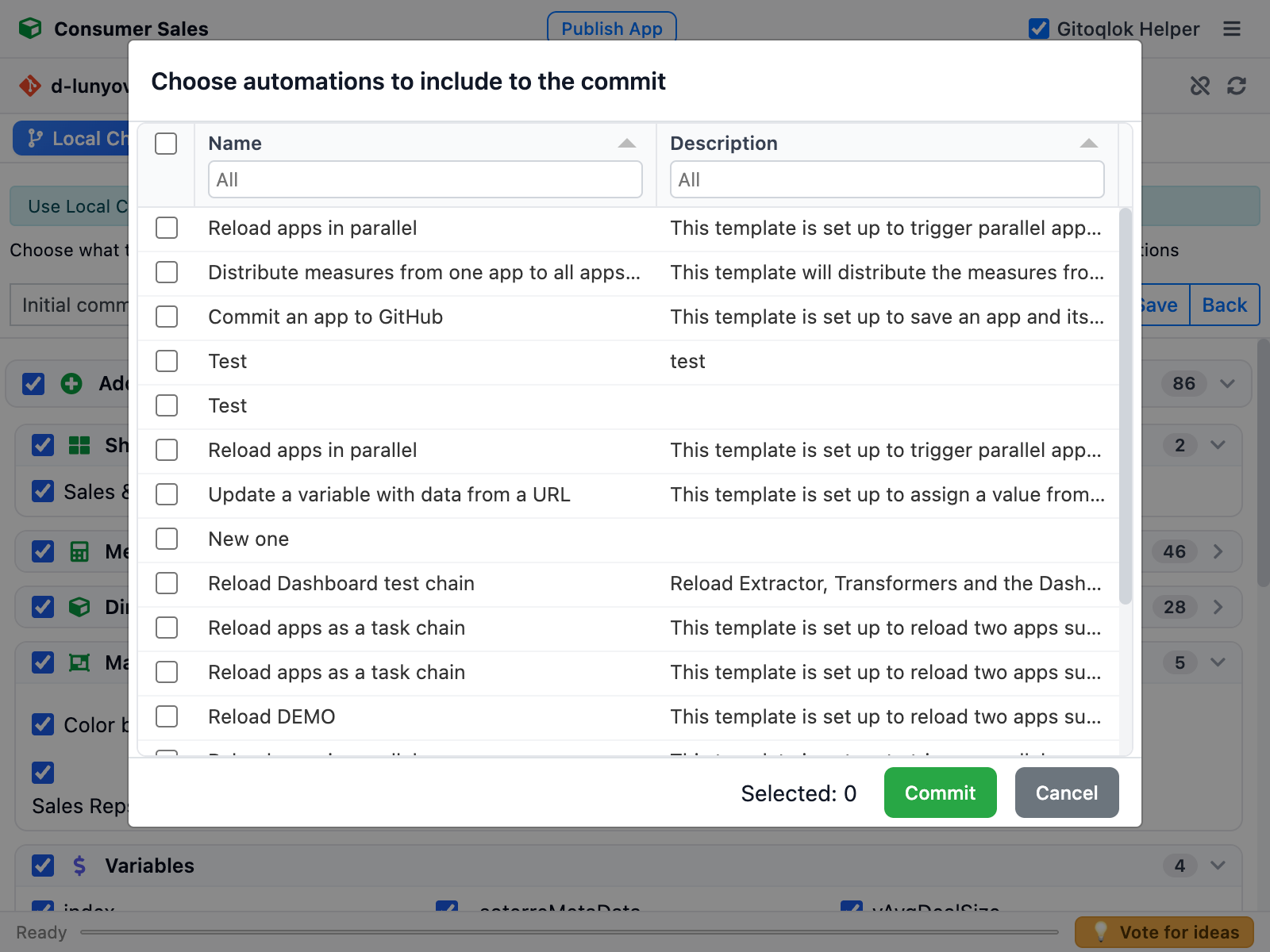
On Qlik Cloud a second dialog lists the tenant's automations; selected ones are stored as objects/automations.json. Click Commit to finish.
On Qlik Sense Enterprise the dialog offers the app's reload tasks together with the data connections; tasks are stored in the reload_tasks folder and can be restored on another server with Reload Tasks or Environment Migration.
The commit selector
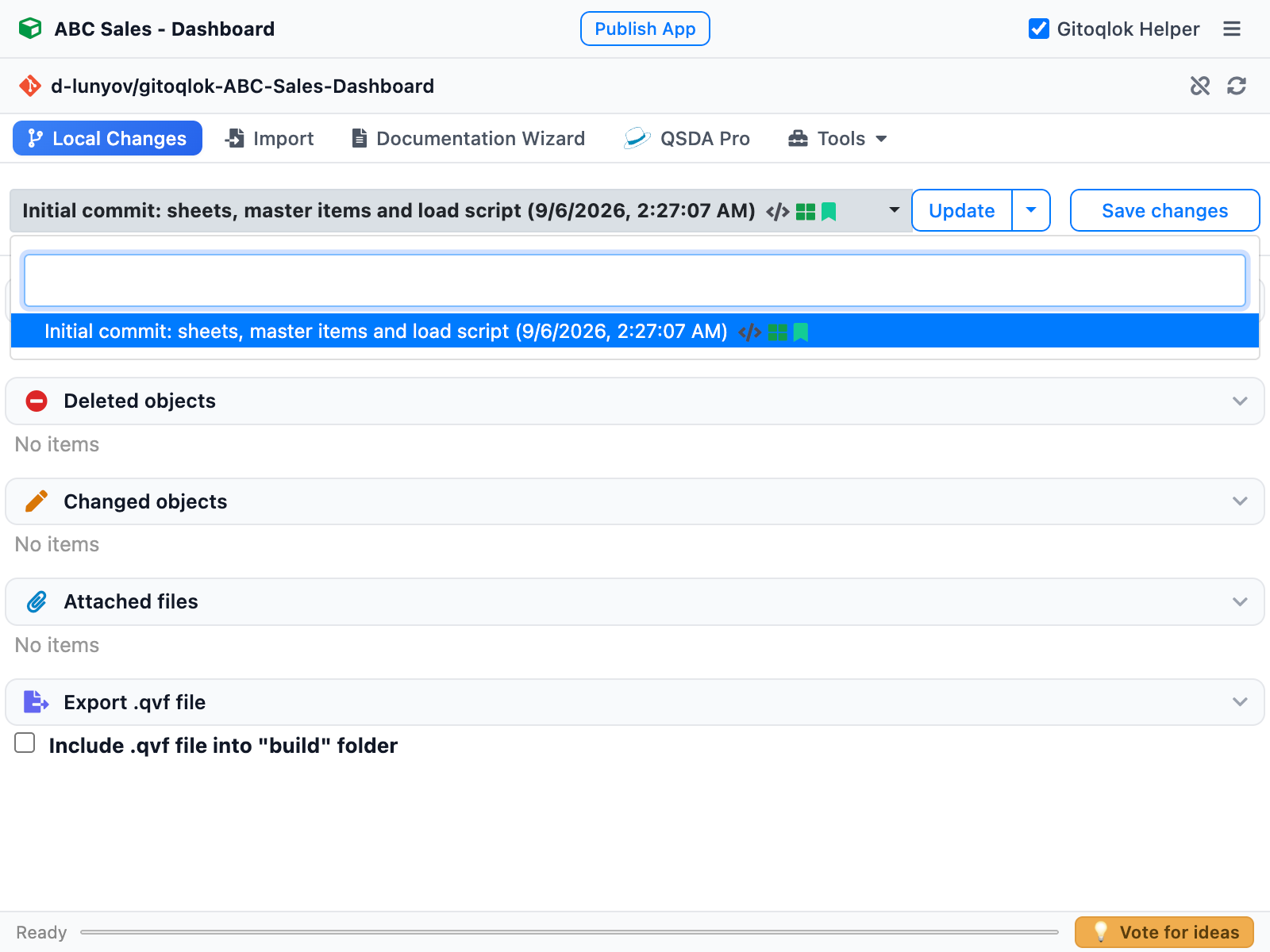
The dropdown above the change list lists the commits of the branch, newest first, with the date and icons of what each commit contains (script, objects, bookmarks). Selecting an older commit changes the base of the comparison and the target of Update.
Tips
- Commit often. Small commits make Time Machine and Diff Viewer more useful and pull requests easier to review.
- Reference tickets in the message (
#123) — GitHub and GitLab link them automatically. - Committing thumbnails and the joined script can be switched off in Repository Settings to reduce merge conflicts between branches.
- A published app can be committed too, but Qlik does not allow editing it: use a copy for development and Publish App to release. See Publish, Move, Duplicate.
Video tutorials
Committing attached (static) files:
Committing Qlik Application Automations: